User guide · Updated 30 October 2026
How to use Torque
Simple steps with pictures. Every picture has red numbers. Step 1 explains red number 1, step 2 explains red number 2, and so on.
1. What Torque is and who does what
Torque keeps all maintenance work of your company in one place: machines and buildings (assets), repairs and services (work orders), regular services (PM plans), spare parts, purchasing and reports. It works on a computer and on a phone, in Georgian, English and Russian.
Every person signs in with their own e-mail. What they can do depends on their level:
| Level | What this person does | Price |
|---|---|---|
| Admin | Everything: settings, users, billing, and all work. | Paying user |
| Planner | Creates and plans work, PM plans, parts and purchasing. | Paying user |
| Technician | Does the work: starts and finishes tasks, adds photos and readings. | Paying user |
| Viewer | Sees everything and sends work requests ("something is broken"). Cannot change records. | Free |
2. Sign in and choose your language
Who can do this: Everyone
Open cmms.ge in Chrome, Edge, Safari or Firefox and press "Sign in". New company? Press "Register a company" instead, fill in the form and confirm your e-mail.
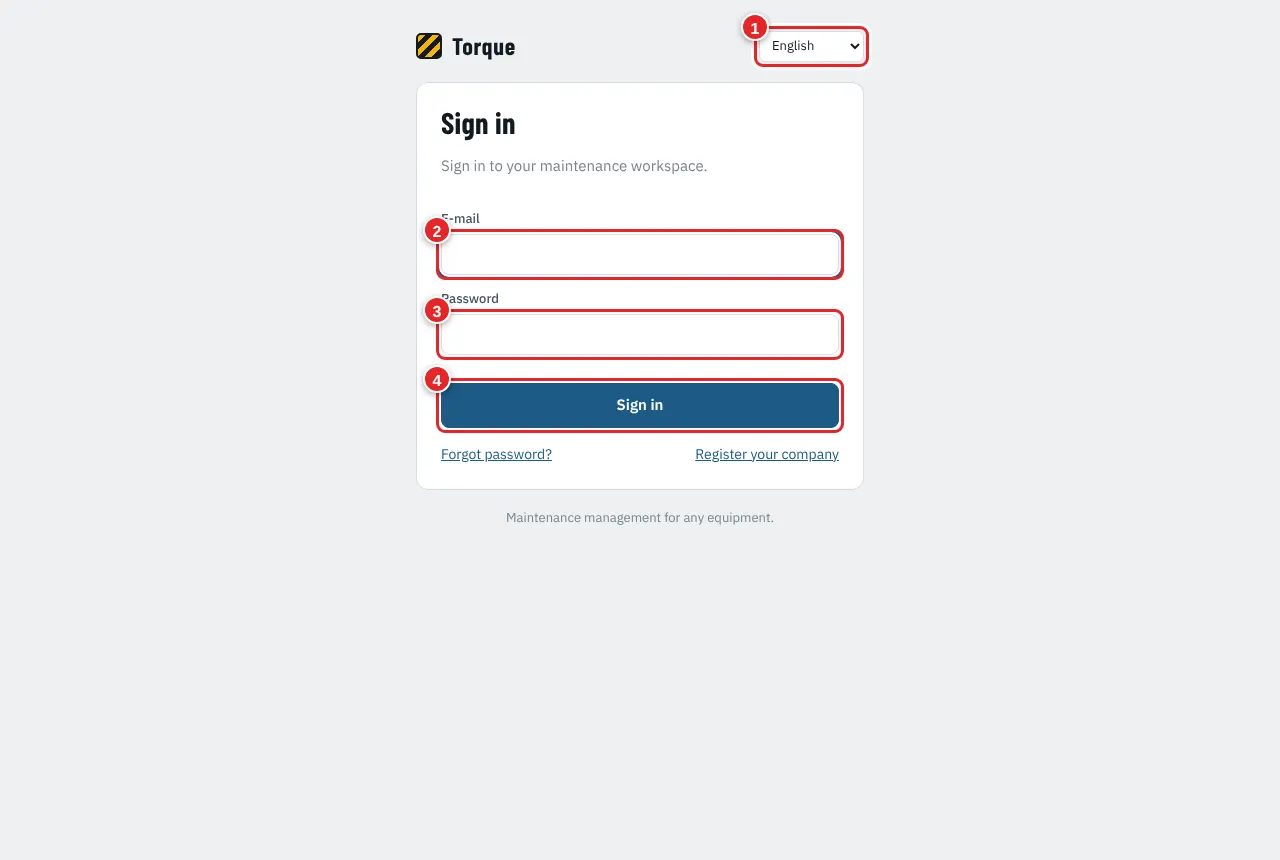
Picture 1 The sign-in page
- Choose your language here. Torque remembers it.
- Type your e-mail address.
- Type your password. Forgot it? Press "Forgot your password?" under the button and follow the e-mail.
- Press "Sign in".
3. The main screen (Overview)
Who can do this: Everyone
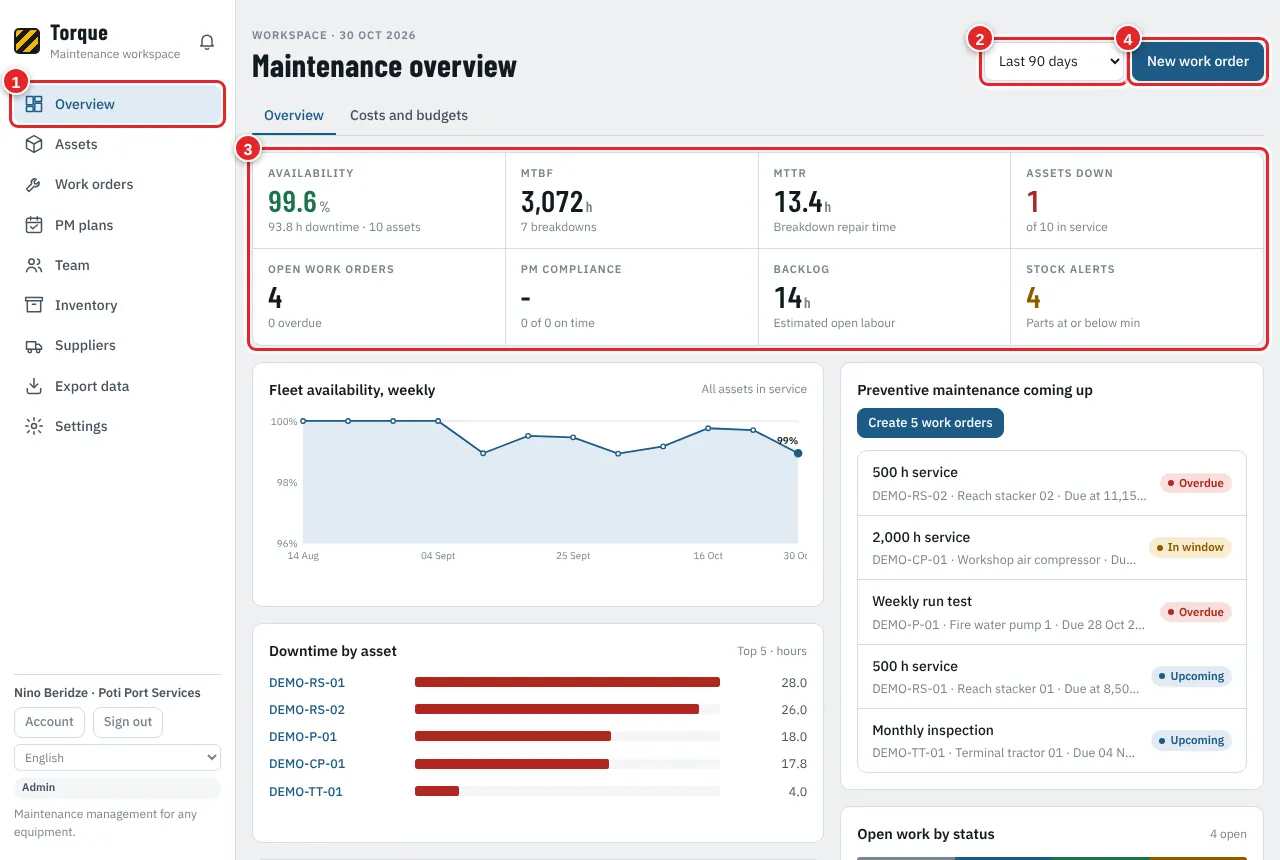
Picture 2 Overview: the state of maintenance on one page
- The menu. Press a name to open that part: Overview, Assets, Work orders, PM plans, Team, Inventory, Suppliers, Export data, Settings. On a phone the menu is at the bottom of the screen.
- Choose the period for the numbers: last 7 days, 30 days, 90 days or 12 months.
- The key numbers: availability, MTBF (time between failures), MTTR (time to repair), assets down, open work orders, PM done on time, backlog and stock alerts. Red means: look here.
- Press "New work order" to report or plan a job from anywhere.
4. First day for the Admin: settings and users
Who can do this: Admin
Do this once, before the team starts. It takes about 15 minutes.
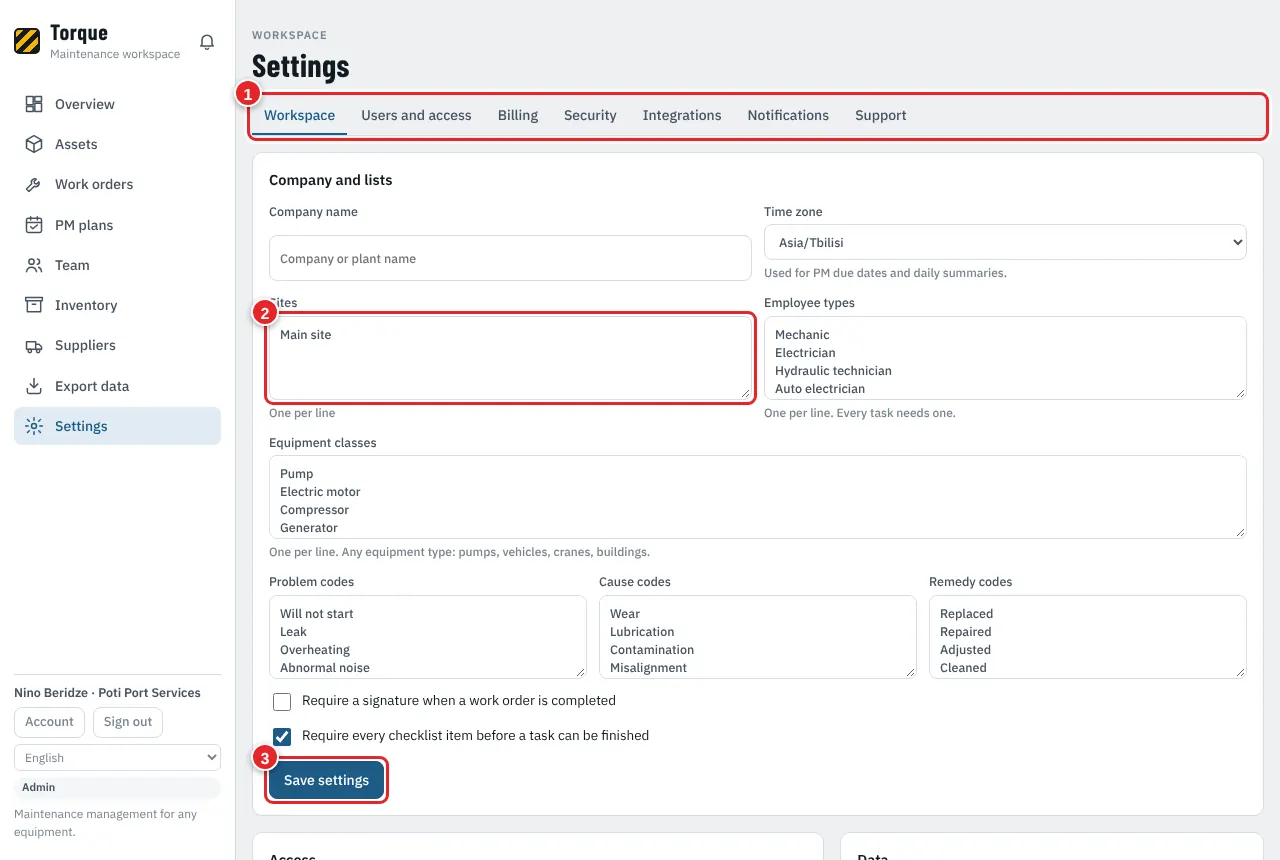
Picture 3 Settings > Workspace
- The tabs of Settings: Workspace, Users and access, Billing, Security, Integrations, Notifications, Support.
- Write your lists, one item per line: sites, employee types (mechanic, electrician...), equipment classes, problem, cause and remedy codes.
- Press "Save settings".
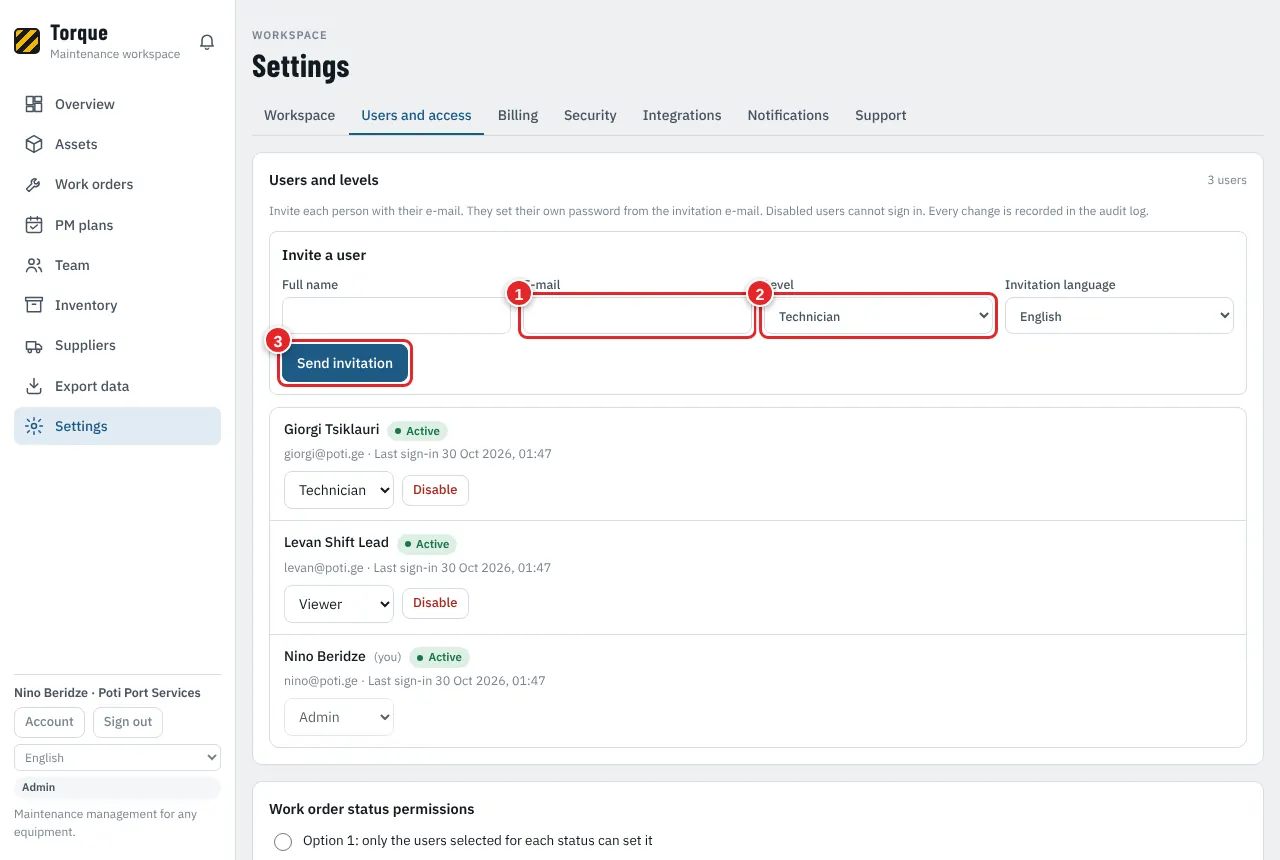
Picture 4 Settings > Users and access: invite people
- Type the person's full name and e-mail.
- Choose the level: Admin, Planner, Technician or Viewer (free).
- Press "Send invitation". The person gets an e-mail and sets their own password.
5. Team: the people who do the work
Who can do this: Admin, Planner
Team is the list of employees and contractors who get tasks. A person in Team does not need a user account, but linking one sends them notifications for their work.
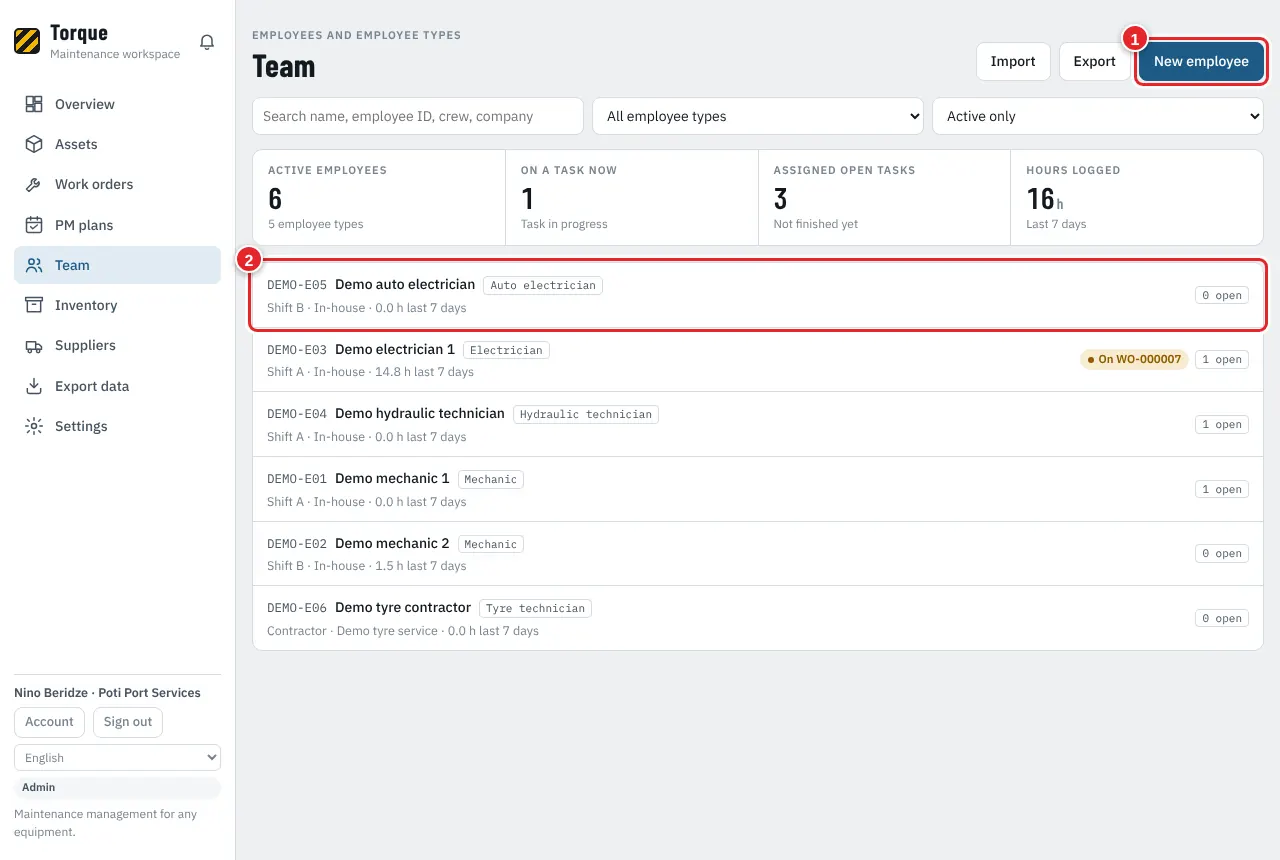
Picture 5 Team
- Press "New employee" to add a person.
- Press a person to see or change their record.
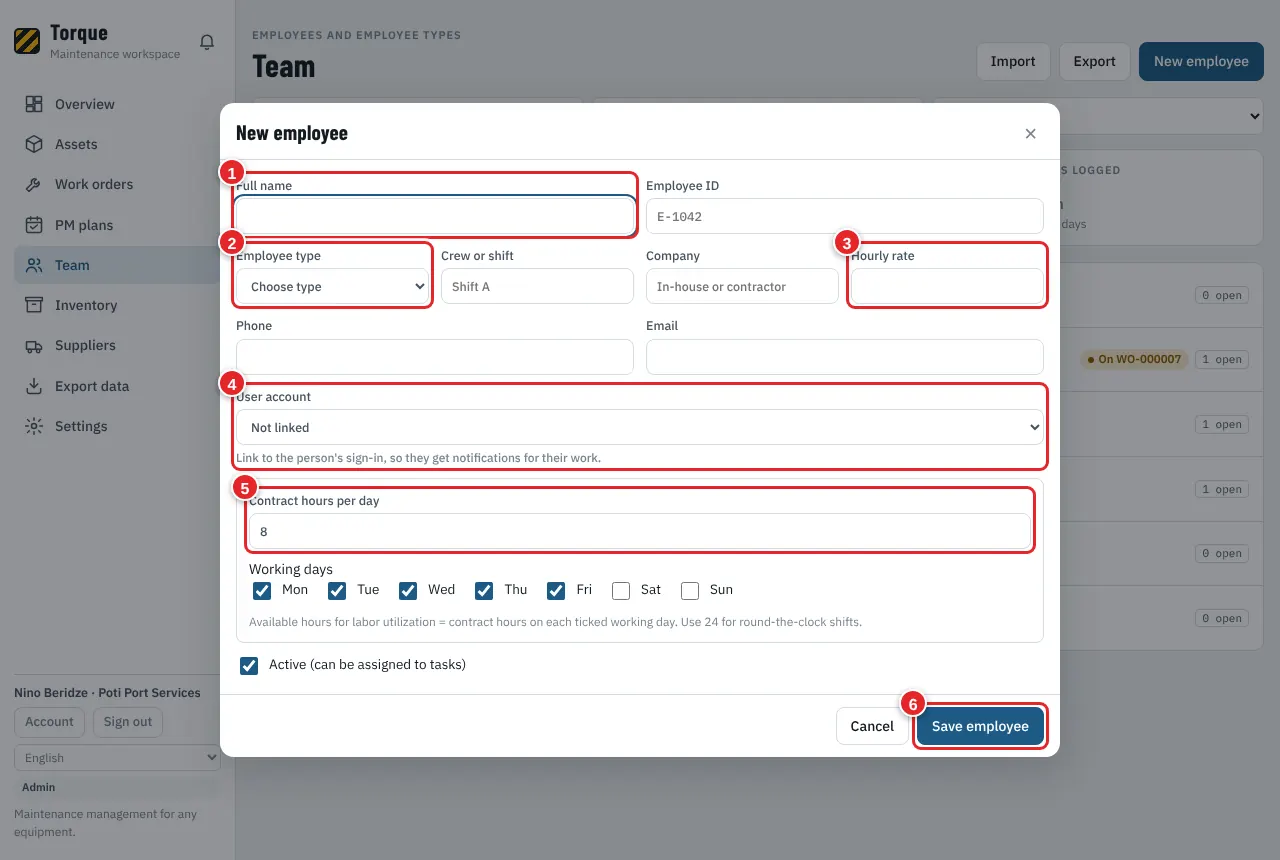
Picture 6 New employee
- Full name.
- Employee type (trade). Every task asks for one.
- Hourly rate. Used to count labor costs.
- User account: link the person's sign-in so they see "my work" and get notifications.
- Contract hours per day and working days. The planning board uses them to show free and full days.
- Press "Save employee".
6. Assets: your machines, vehicles and buildings
Who can do this: Admin, Planner
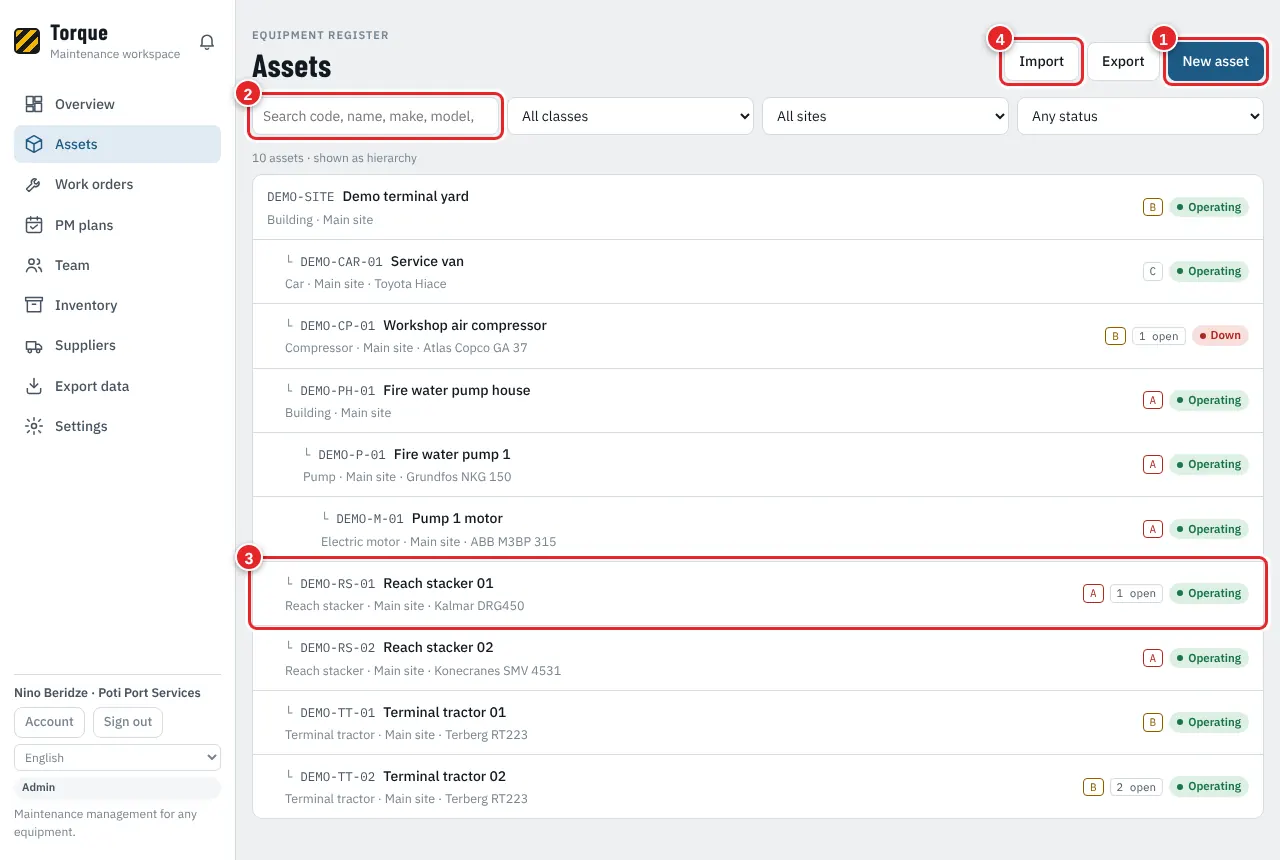
Picture 7 Assets: the equipment register
- Press "New asset" to add one machine, vehicle, building or system.
- Search by code, name, make, model or serial number. Filters next to it: class, site, status.
- Press an asset to open its page. Sub-assets are shown under their parent (a pump under its pump house).
- Press "Import" to bring many assets at once from Excel or CSV (see chapter 15).
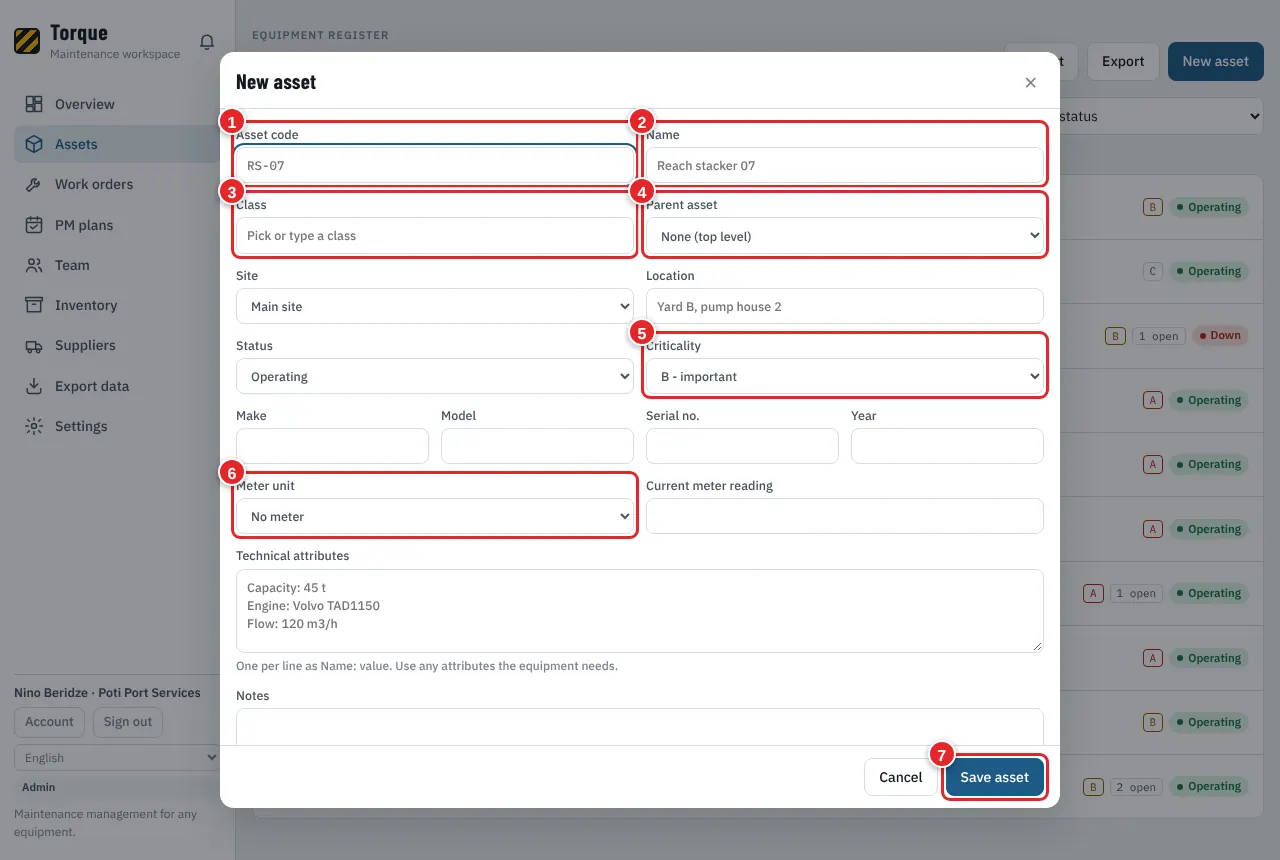
Picture 8 New asset
- Code: a short unique name, for example RS-01.
- Name: for example Reach stacker 01.
- Class: the type of equipment (from your Settings list).
- Parent: the bigger asset it belongs to, if any.
- Criticality: A (most important), B or C.
- Meter unit: hours, km or cycles, if the machine has a counter. Needed for PM by meter.
- Press the save button at the bottom.
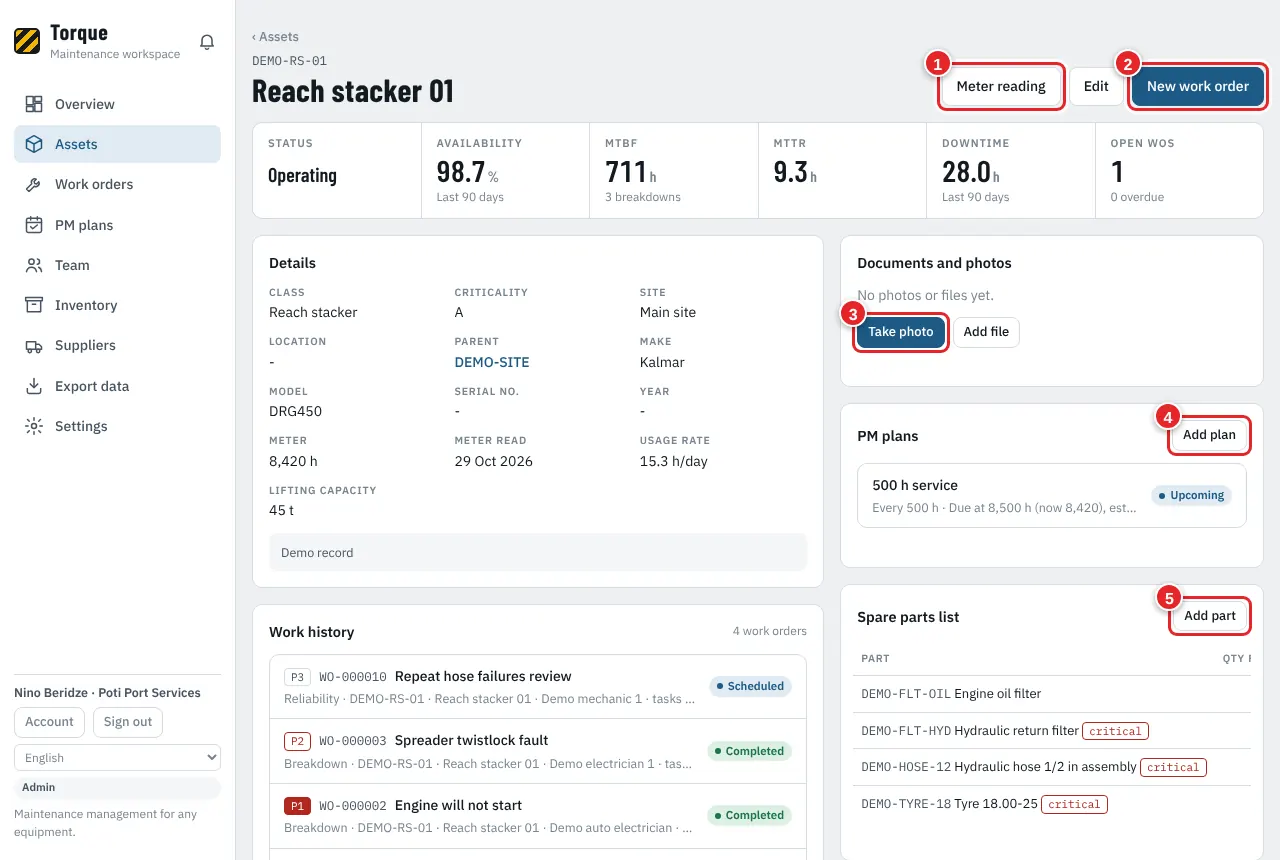
Picture 9 The page of one asset
- Enter a new meter reading (hours, km). PM plans by meter use it.
- Report a problem or plan a job for this asset.
- Add photos, manuals and certificates.
- Add a PM plan for this asset.
- Make the spare parts list of this asset.
7. Work orders: report and create a job
Who can do this: Technician, Planner, Admin (Viewers: see chapter 11)
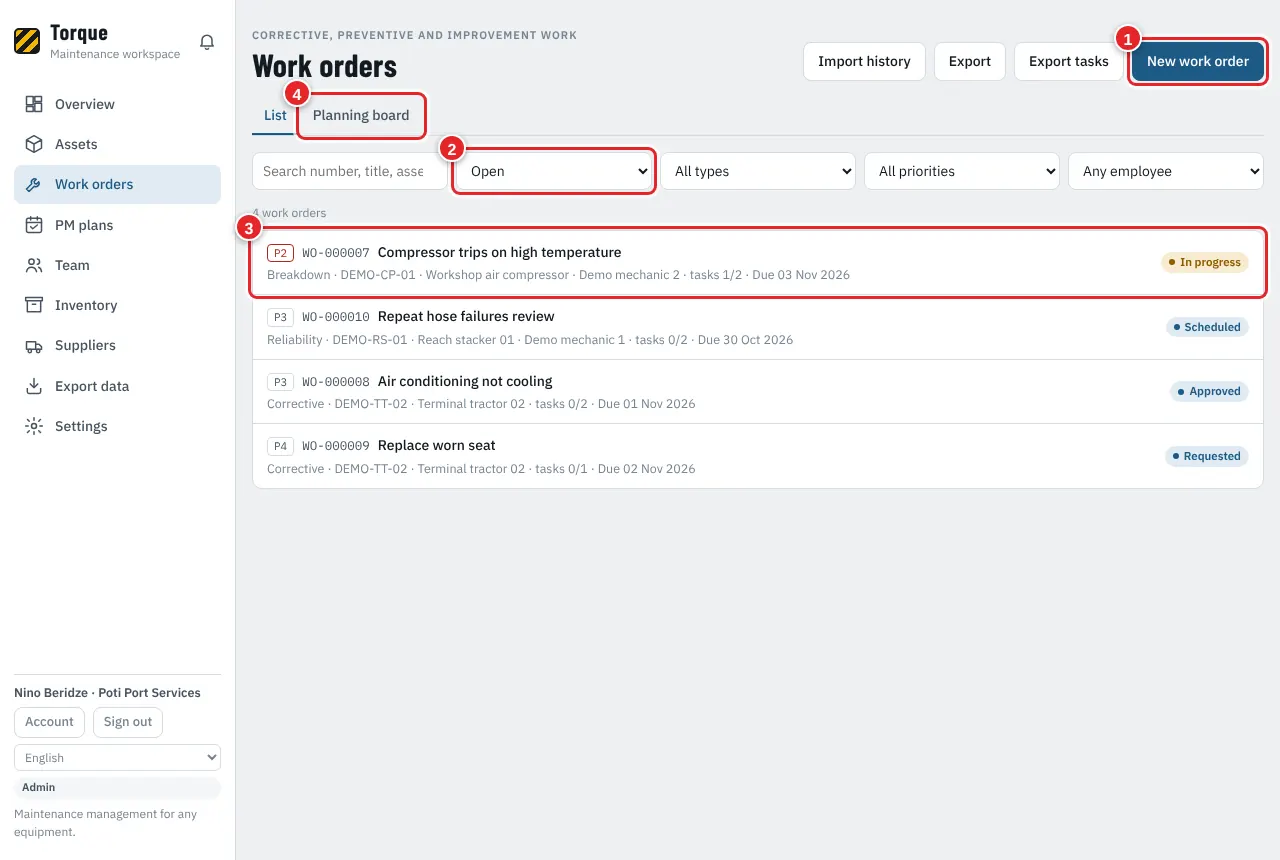
Picture 10 Work orders
- Press "New work order".
- Filter the list by status (open, overdue, completed...).
- Press a work order to open it.
- The "Planning board" tab: see chapter 9.
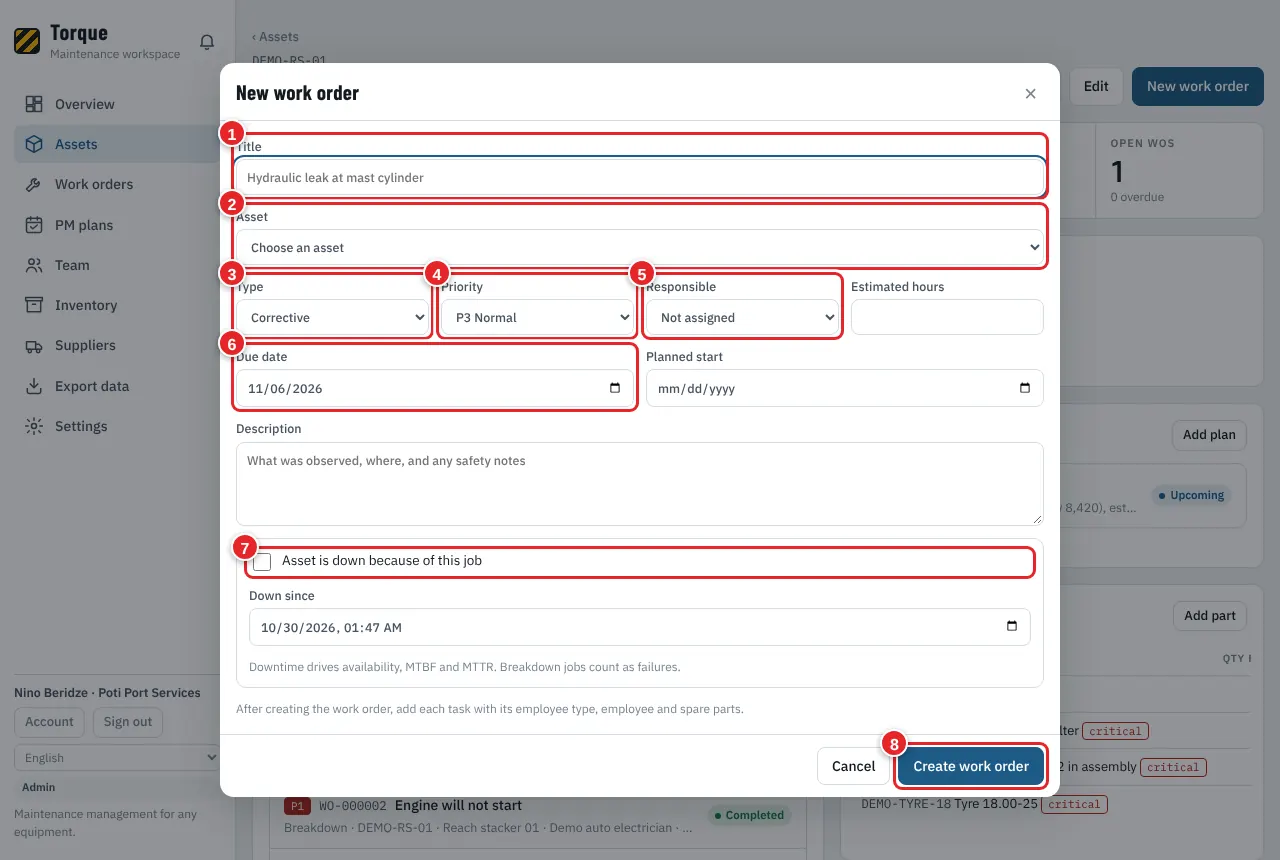
Picture 11 New work order
- Title: what is wrong or what to do, in a few words. Example: "Hydraulic leak at mast cylinder".
- Asset: which machine.
- Type: Breakdown, Corrective, Preventive, Inspection and others. Breakdowns count as failures in the reports.
- Priority: P1 urgent, P2 high, P3 normal, P4 low.
- Responsible: the person who leads the job (optional).
- Due date: when it must be done.
- Tick this if the machine is stopped because of this job. Torque counts the downtime.
- Press "Create work order". Then add the tasks (next chapter).
8. A work order from start to finish
Who can do this: Planner, Admin, Technician
Every work order moves through these steps. You see where it is on the bar at the top of the work order.
- Requested
- Approved
- Scheduled
- In progress
- Completed
- Closed
In progress can pause at Waiting for parts · or stop at any time Cancelled
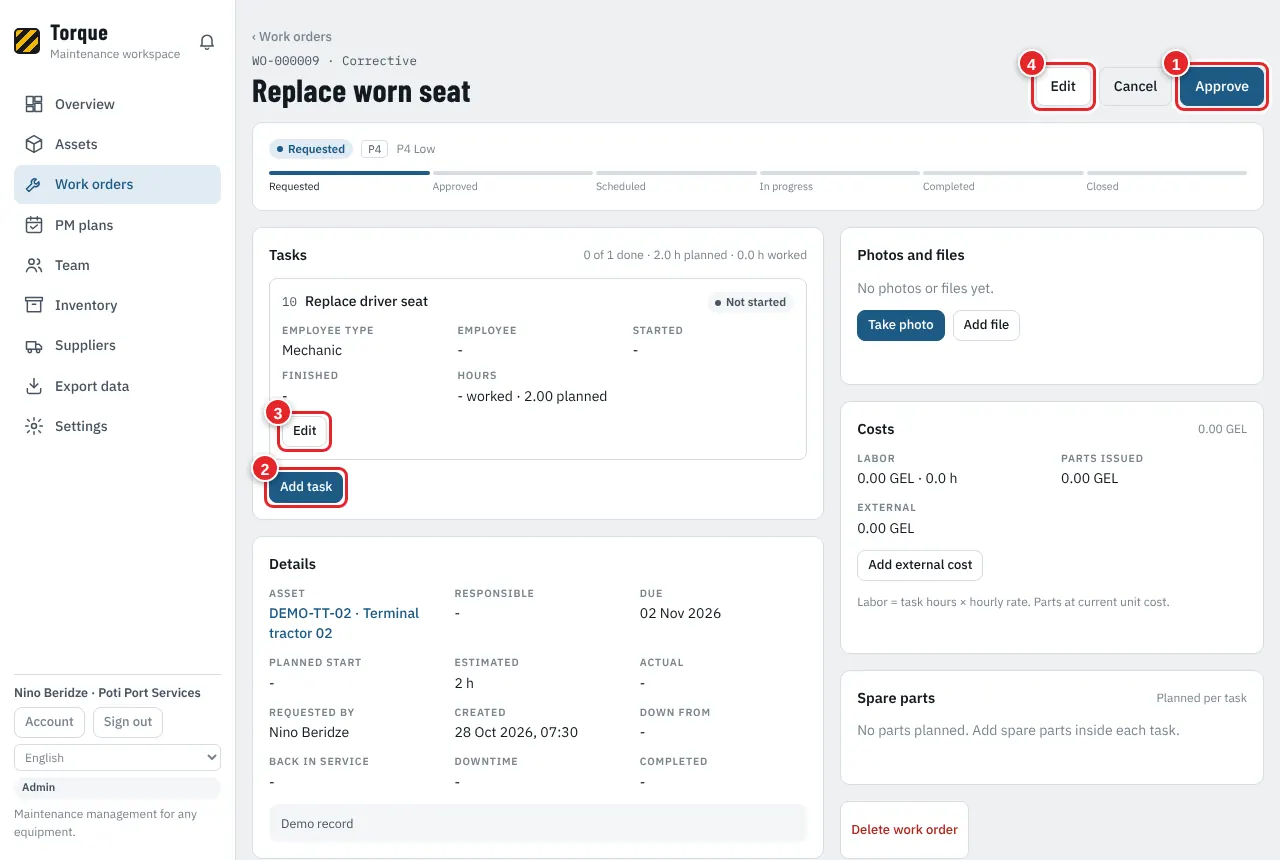
Picture 12 A new request: check and approve
- Press "Approve" when the job is needed. ("Cancel" if not.)
- Press "Add task" for each piece of work and each trade (mechanic, electrician...).
- Press "Edit" on a task to change it.
- Press "Edit" at the top to change the work order itself (title, priority, dates).
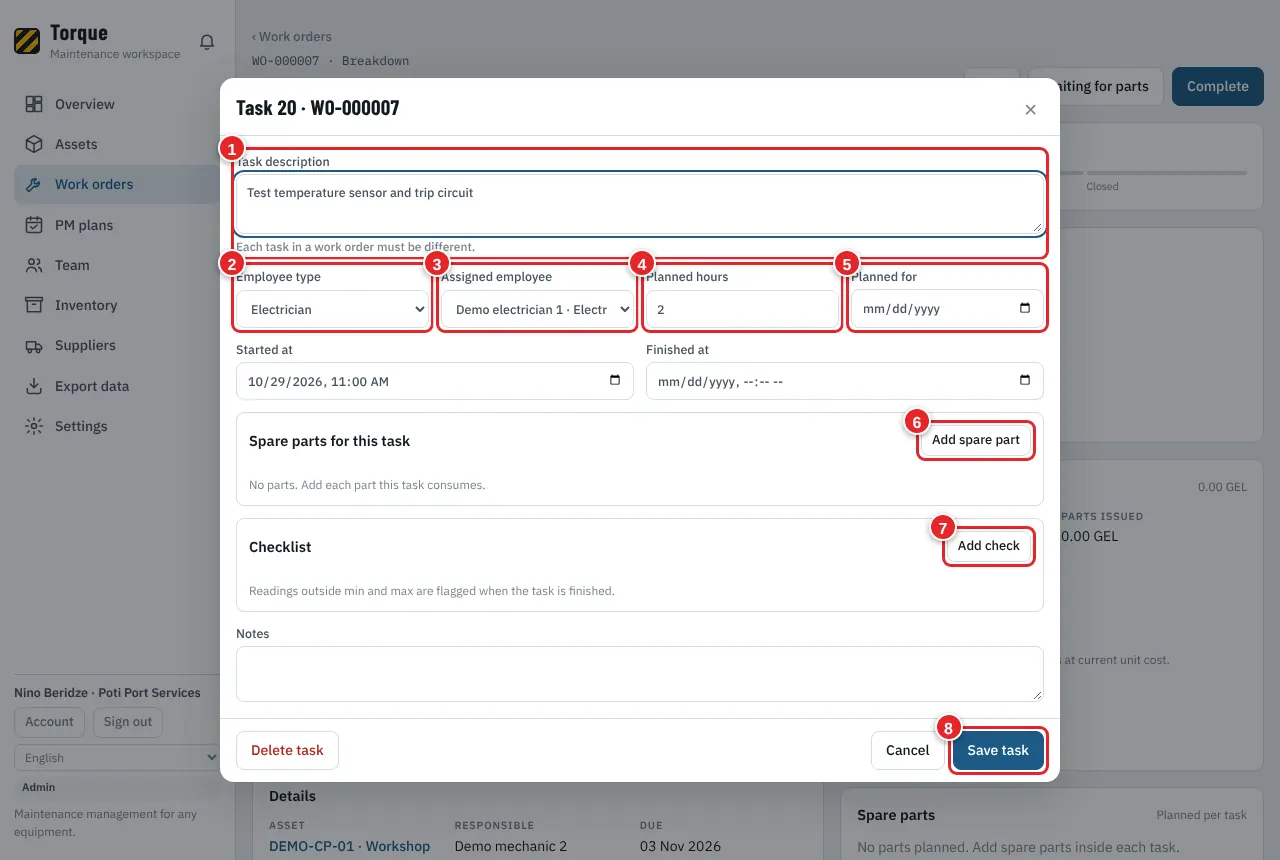
Picture 13 A task: who does what
- Task description: what exactly to do.
- Employee type (trade).
- Assigned employee: who does it.
- Planned hours.
- Planned for: the day.
- Add spare parts the task needs. They are reserved in stock.
- Add checks: readings with min and max (for example oil pressure). Values outside the limits are flagged.
- Press "Save task".
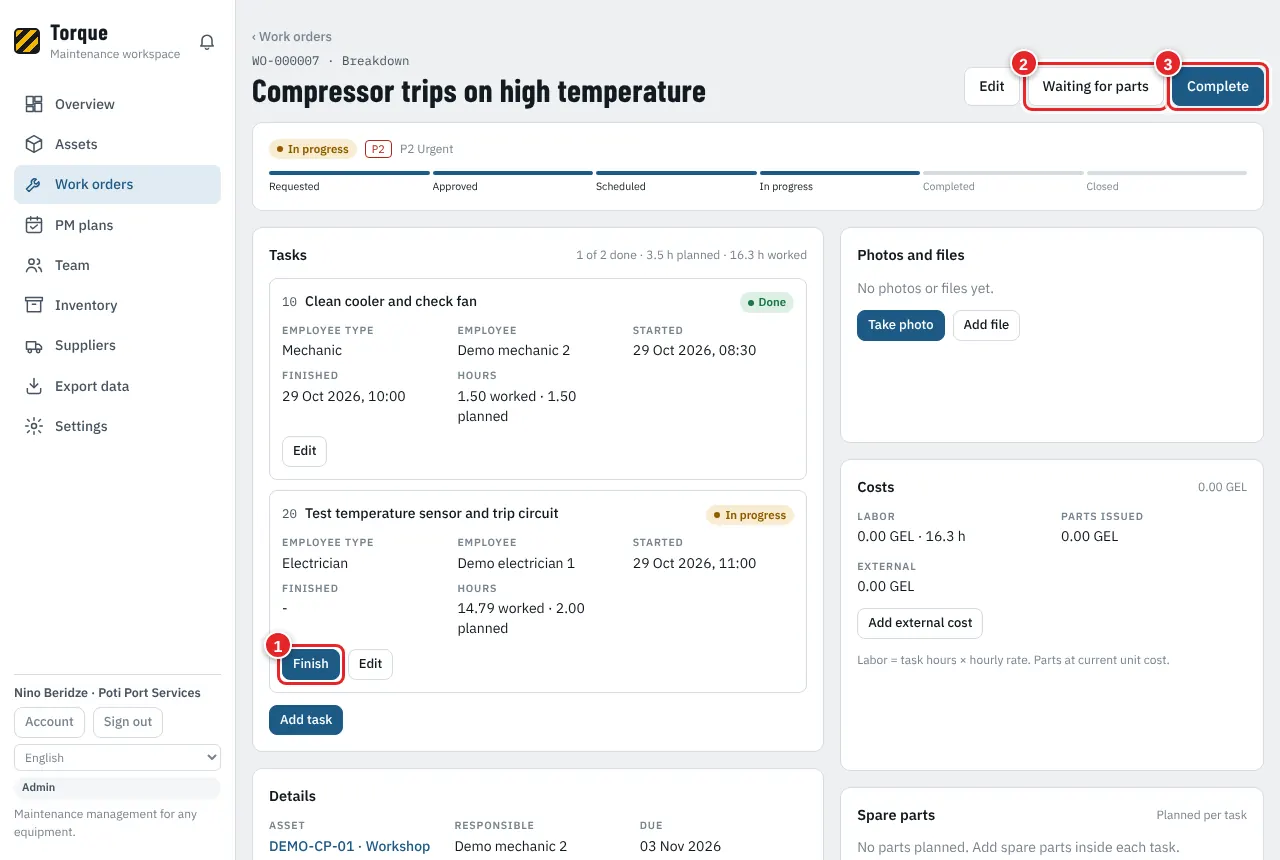
Picture 14 Work in progress
- The technician presses "Start" on a task when he begins and "Finish" when he is done. Torque writes the times and hours.
- Press "Waiting for parts" if the job must wait for spare parts.
- When all tasks are done, press "Complete".
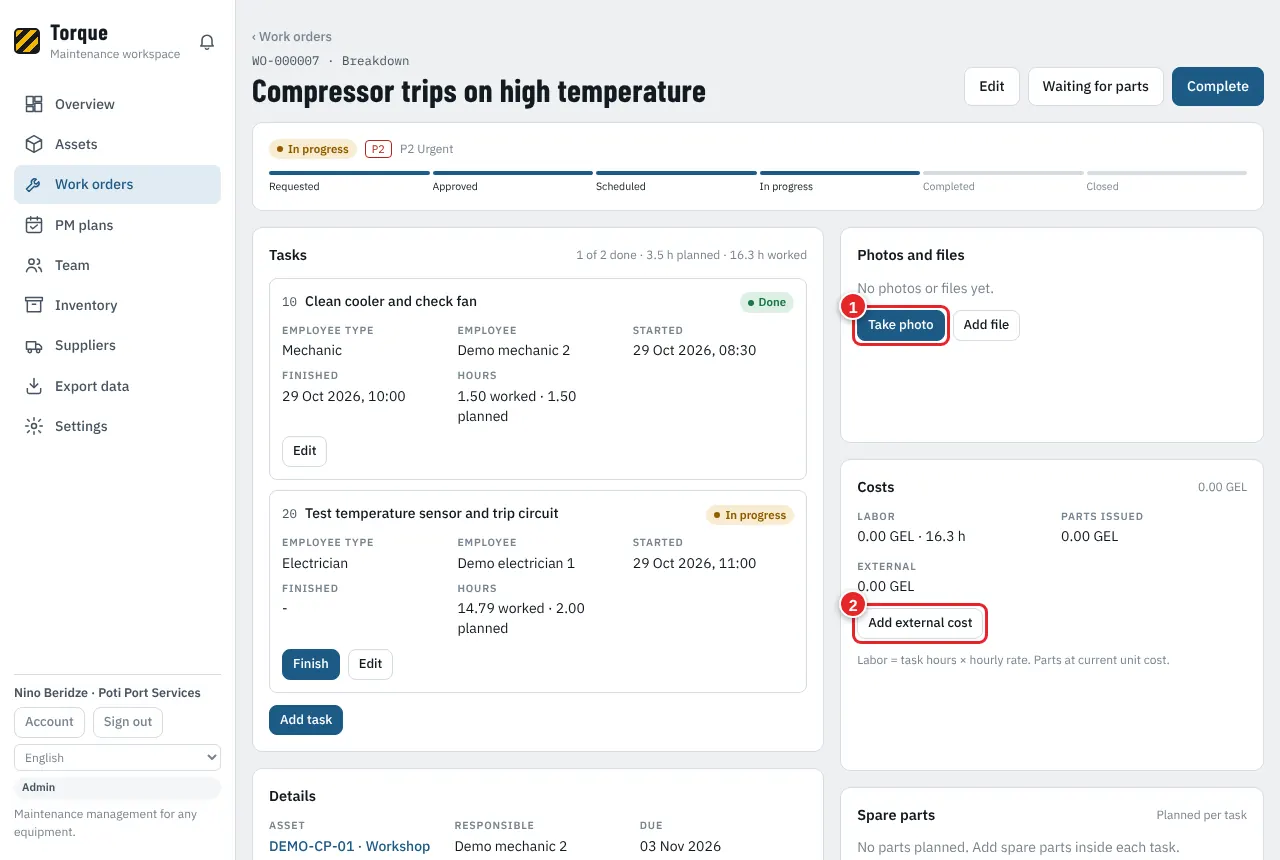
Picture 15 Photos and costs
- Press "Take photo" (on a phone the camera opens) or "Add file".
- Add costs from outside, for example a contractor invoice. Labor and parts are counted by themselves.
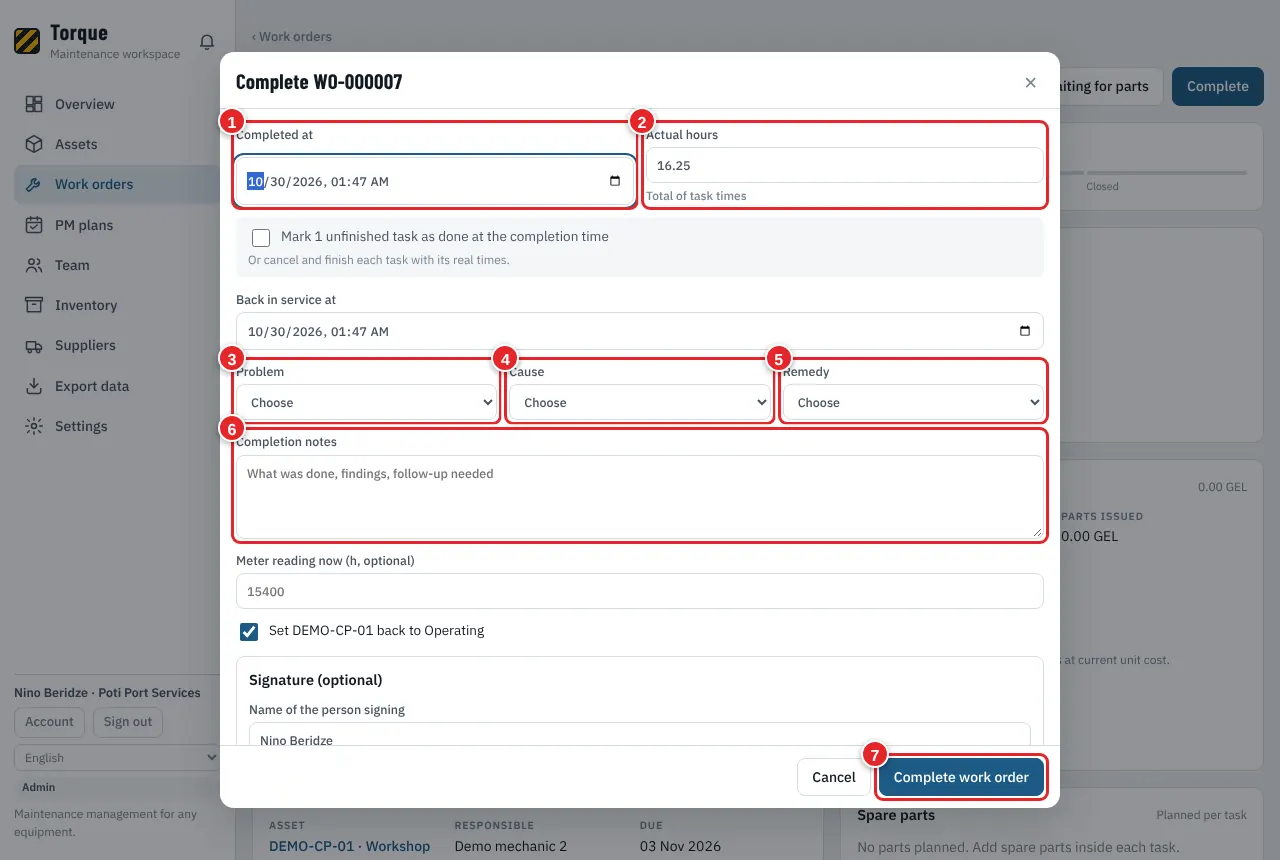
Picture 16 Complete the work order
- Completed at: when the job ended.
- Actual hours: filled from the task times, change if needed.
- Problem: what was wrong.
- Cause: why it happened.
- Remedy: what was done.
- Completion notes: findings and follow-up work.
- Press "Complete work order". If needed, the asset goes back to "Operating" by itself.
9. Planning board: who works on what, which day
Who can do this: Planner, Admin
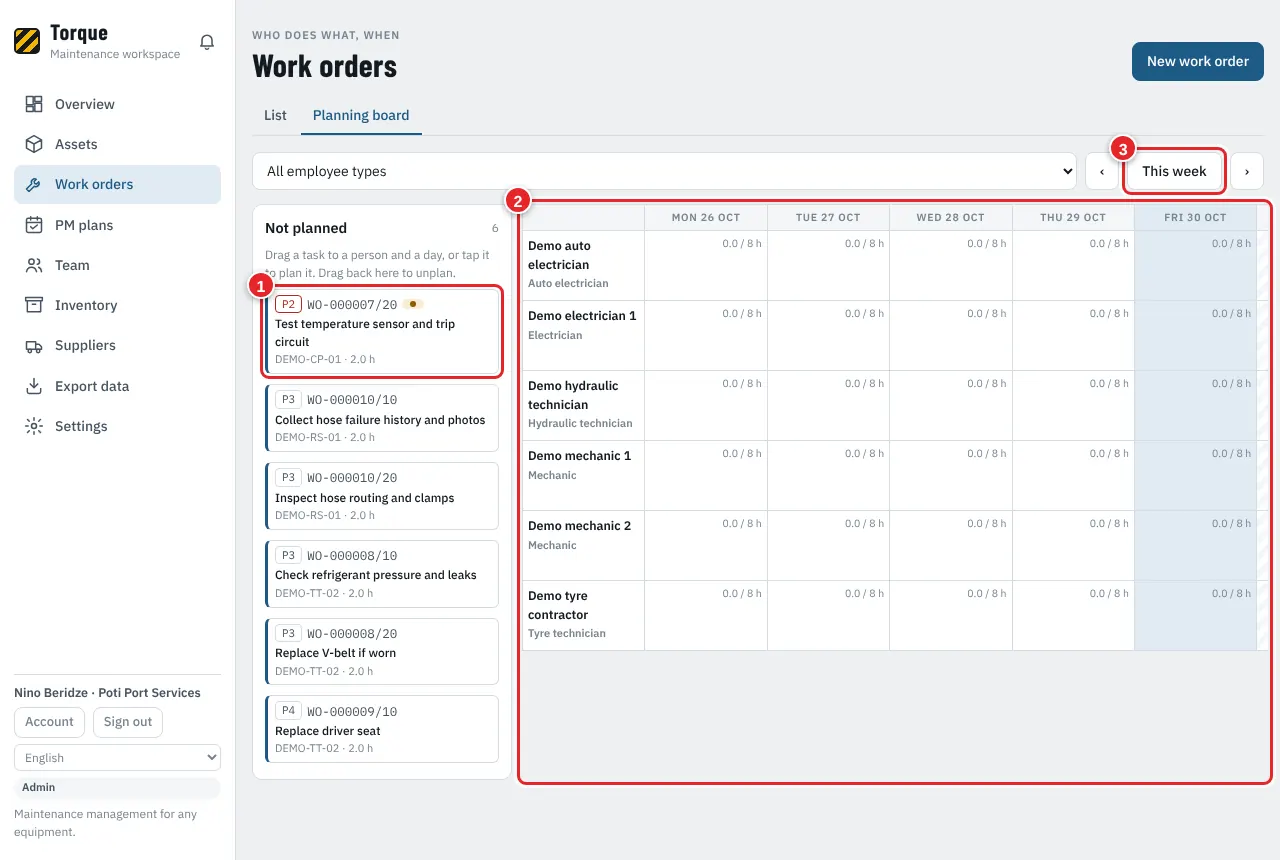
Picture 17 Work orders > Planning board
- Tasks that have no person or day yet. Drag a task onto a person and a day (on a phone: tap it and choose).
- The week: one row per person, one column per day, with hours planned out of their contract hours. A full day is easy to see.
- Move to the previous or next week, or back to "This week".
10. PM plans: regular service that creates work by itself
Who can do this: Planner, Admin
A PM plan says: "do this service on this asset every 30 days" or "every 500 hours". Torque creates the work order before it is due, so nothing is forgotten.
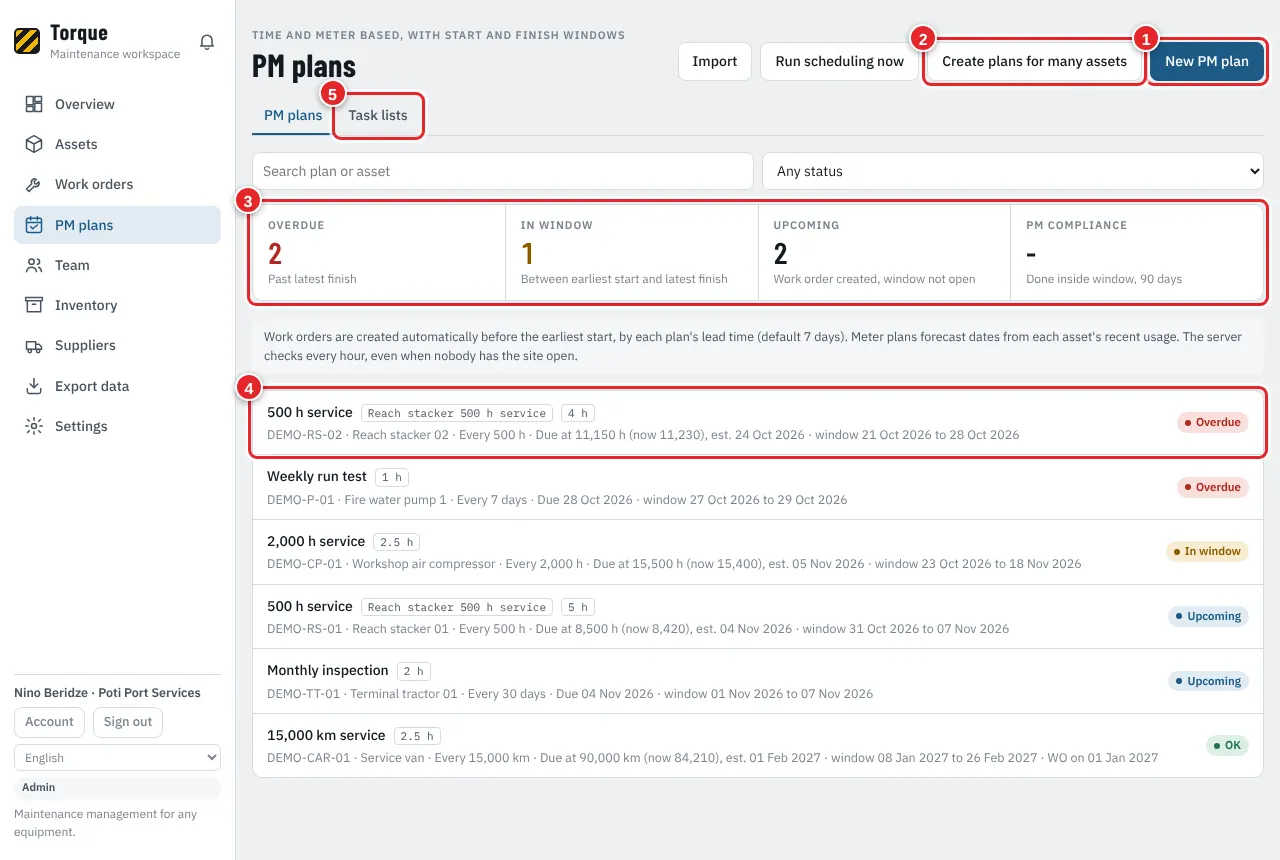
Picture 18 PM plans
- Press "New PM plan".
- Press "Create plans for many assets" to give the same plan to many machines at once.
- Overdue, in window, upcoming and PM compliance (done inside the window).
- Press a plan to open or change it.
- The "Task lists" tab: ready lists of tasks you can reuse.
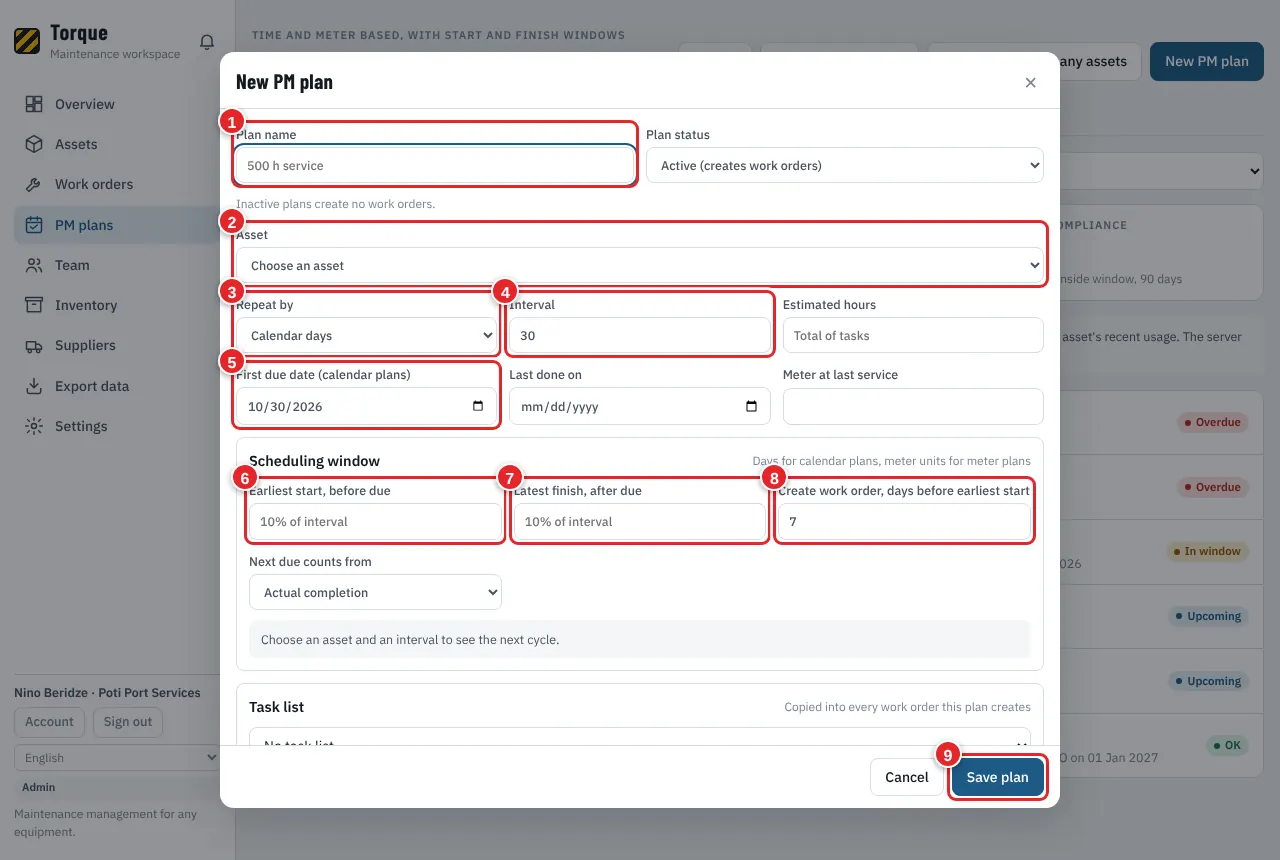
Picture 19 New PM plan
- Plan name, for example "500 h service".
- Asset.
- Repeat by: calendar days, or meter (hours, km, cycles).
- Interval: every how many days or hours.
- First due date (calendar plans).
- Earliest start: how early the work may be done.
- Latest finish: how late it may be done.
- Create the work order this many days before the earliest start (default 7).
- Press "Save plan".
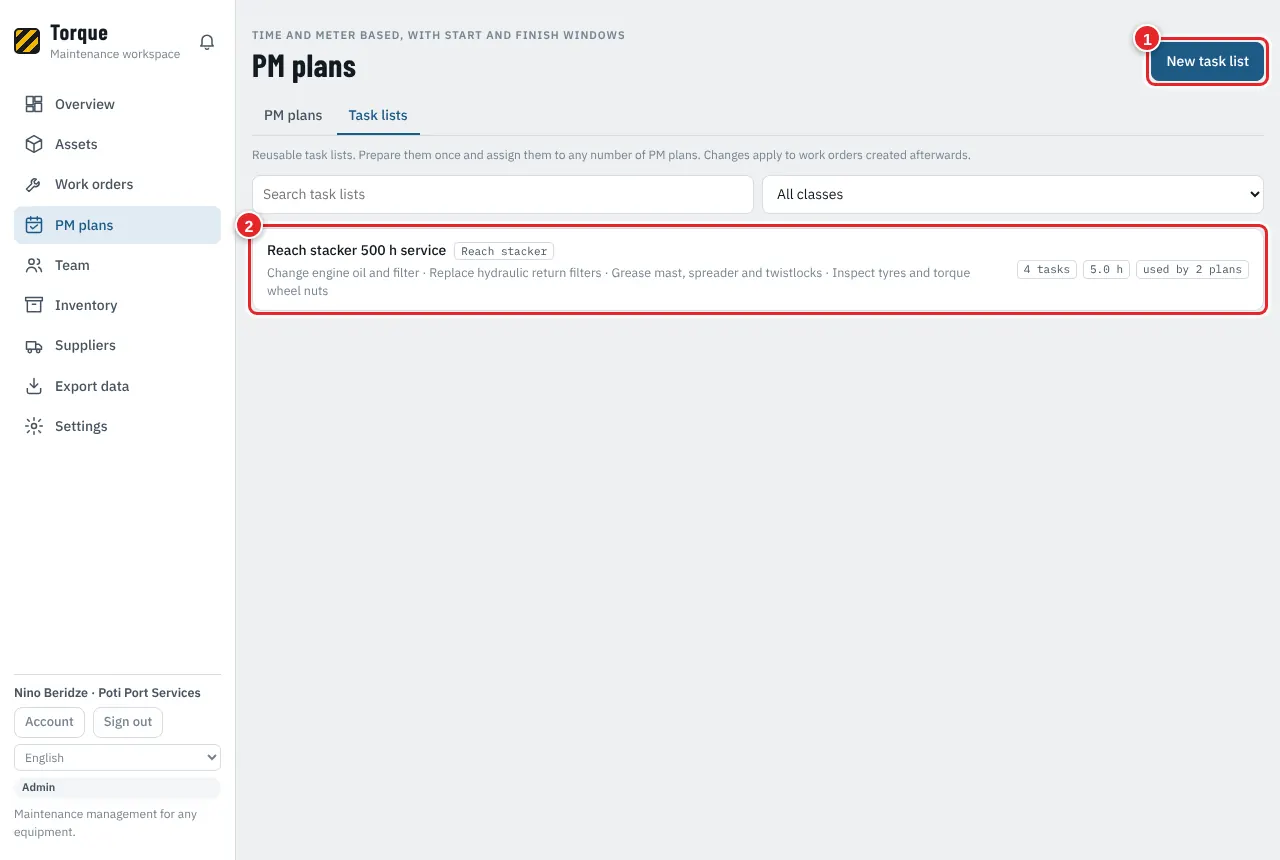
Picture 20 Task lists
- Press "New task list" to prepare the tasks of a service once (for example "Reach stacker 500 h service").
- Press a list to change it. Changes apply to work orders created afterwards.
11. On the phone: technicians and free Viewers
Who can do this: Technician, Viewer
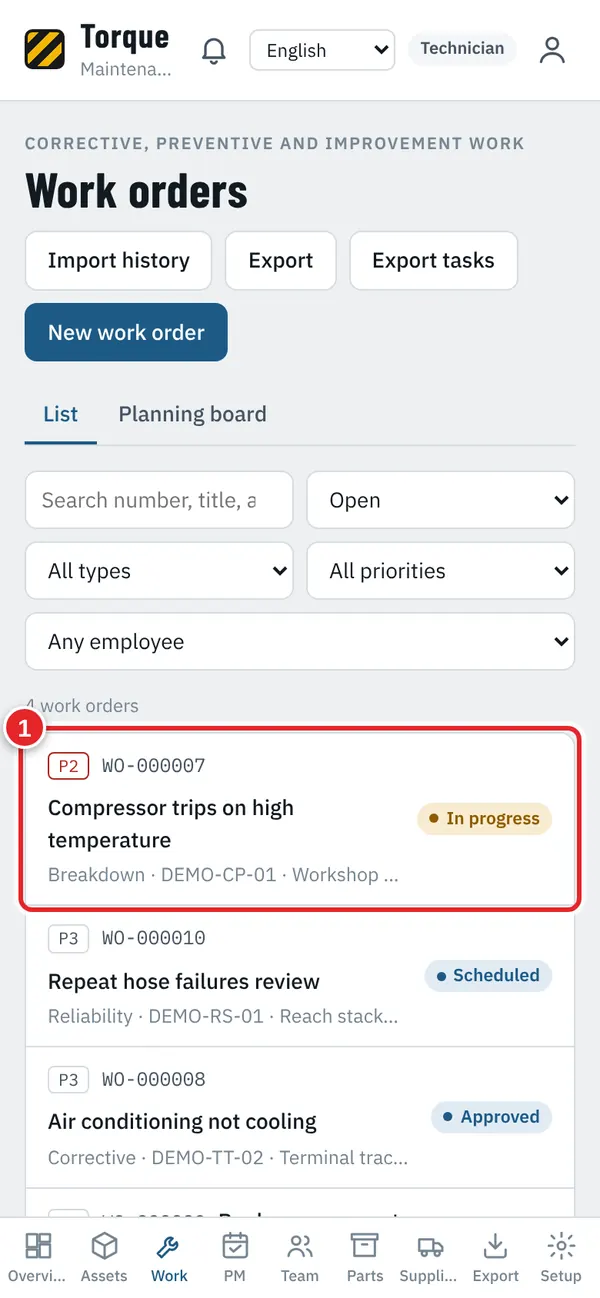
Picture 21 Technician: my work
- Open "Work" at the bottom and tap your work order.
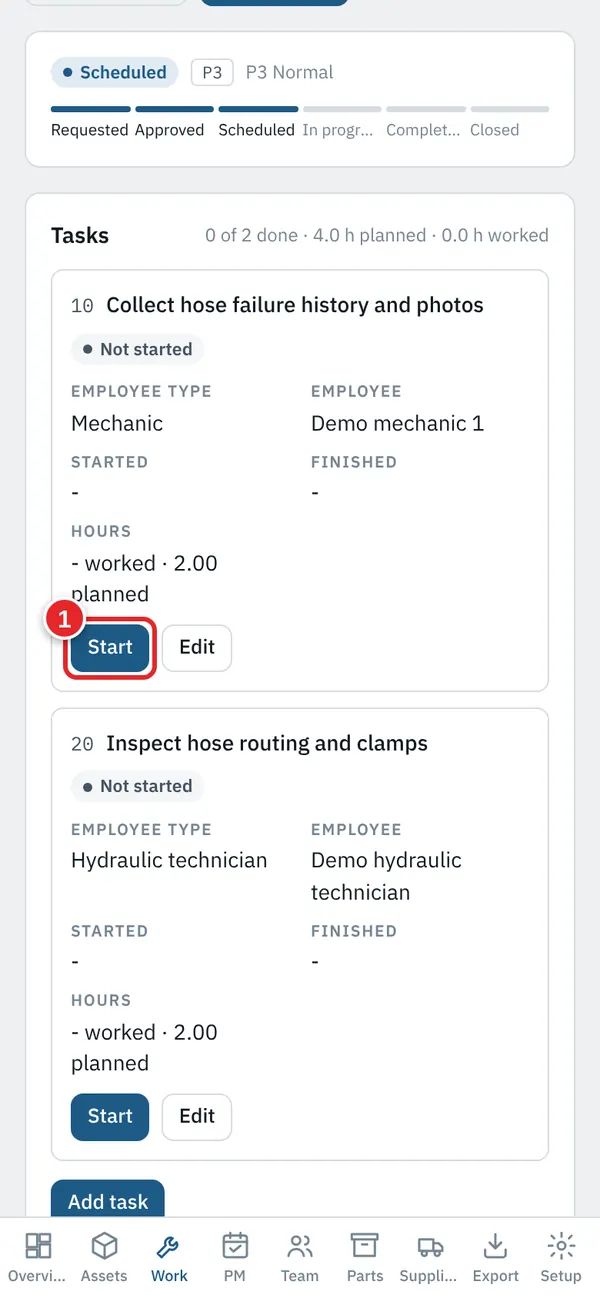
Picture 22 Technician: start and finish a task
- Tap "Start" when you begin the task. When you are done, tap "Finish". Fill in the checks if asked. Add a photo of the result.
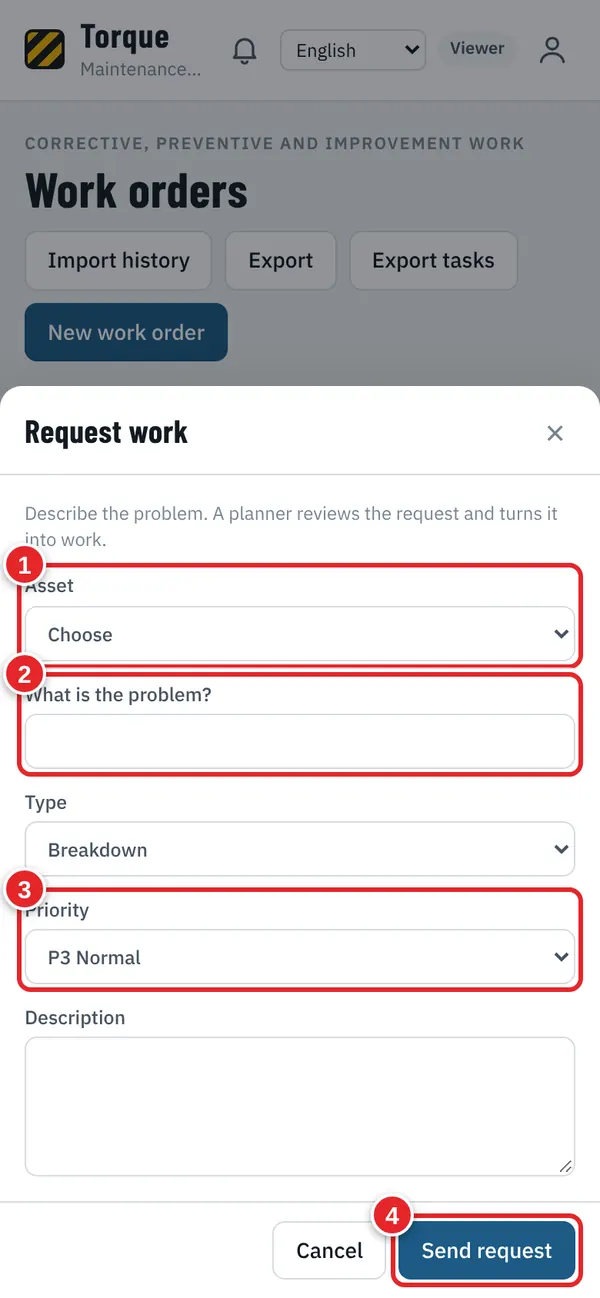
Picture 23 Viewer: report a problem (free)
- Asset: which machine has the problem.
- What is the problem? Write it in a few words.
- Priority: how urgent it is.
- Tap "Send request". A planner checks it and turns it into work. You see its status in the list.
12. Spare parts, purchase requests and orders
Who can do this: Planner, Admin
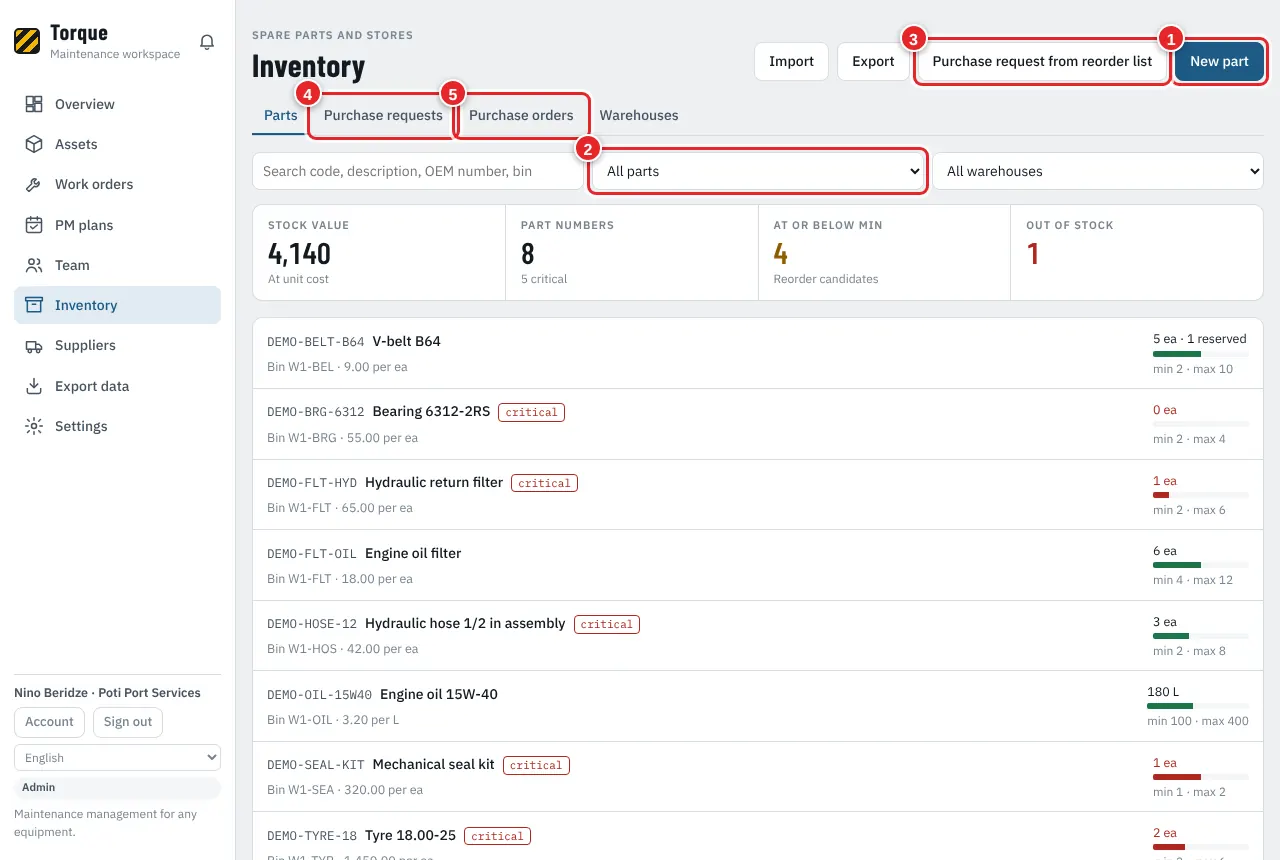
Picture 24 Inventory
- Press "New part".
- Filter: all parts, at or below minimum, out of stock, critical.
- Press "Purchase request from reorder list": Torque fills a request with every part below its minimum.
- The "Purchase requests" tab: what the team needs.
- The "Purchase orders" tab: what you ordered from suppliers.
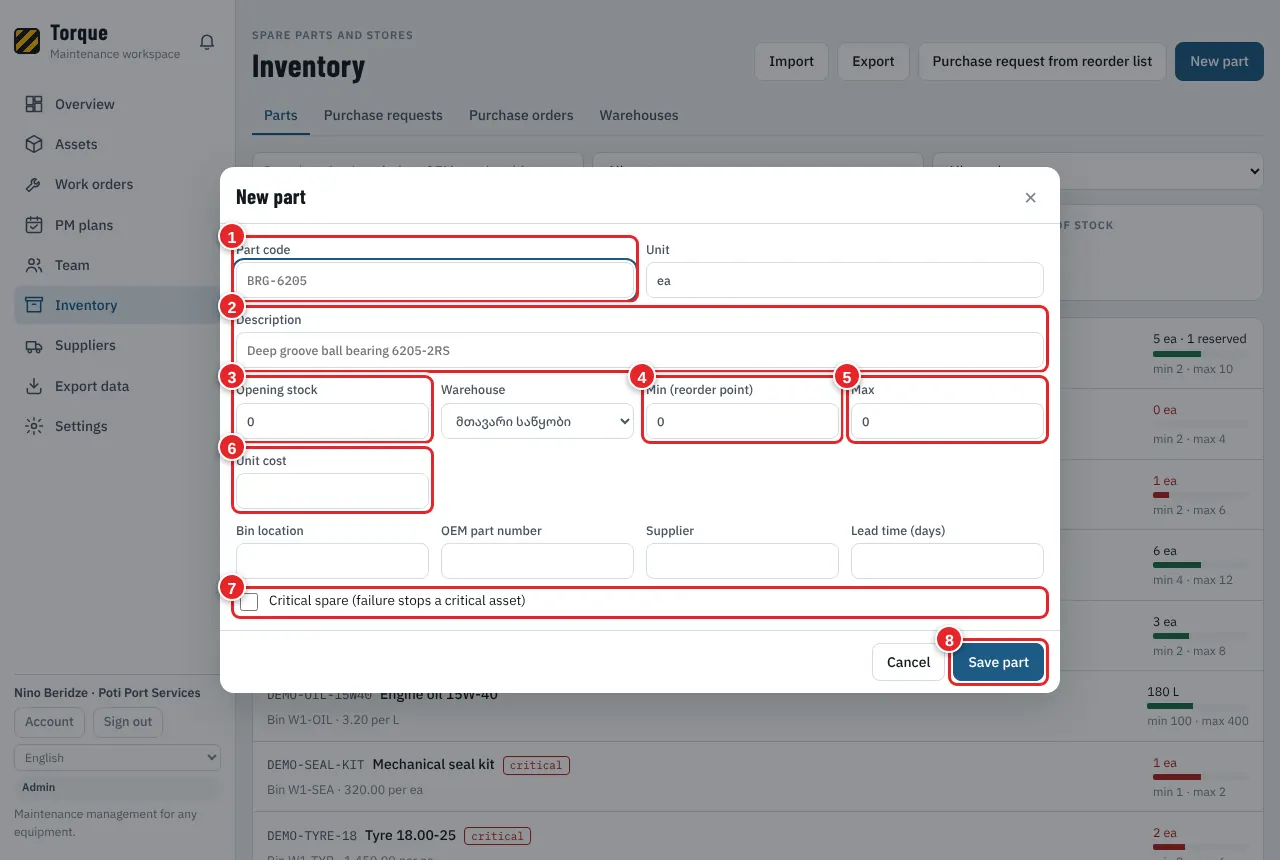
Picture 25 New part
- Code.
- Description.
- On hand: how many you have now.
- Min: below this, Torque warns you to reorder.
- Max: how many to have after reordering.
- Unit cost: used for stock value and work order costs.
- Critical: tick it for parts that stop a machine when missing.
- Save.
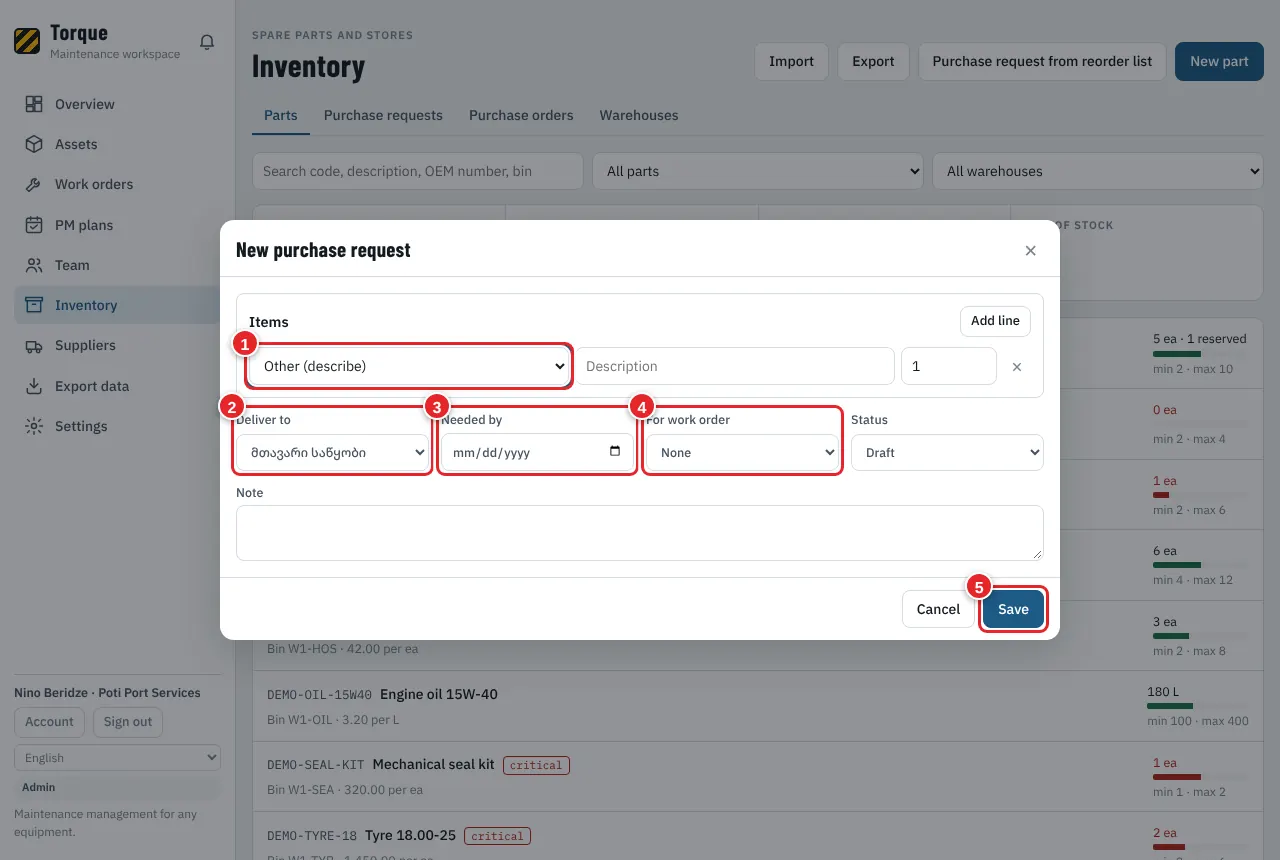
Picture 26 New purchase request
- Choose the part (or "Other" and describe it) and the quantity. "Add line" for more.
- Deliver to: which warehouse.
- Needed by: the date.
- For work order: link the job that needs it (optional).
- Press "Save".
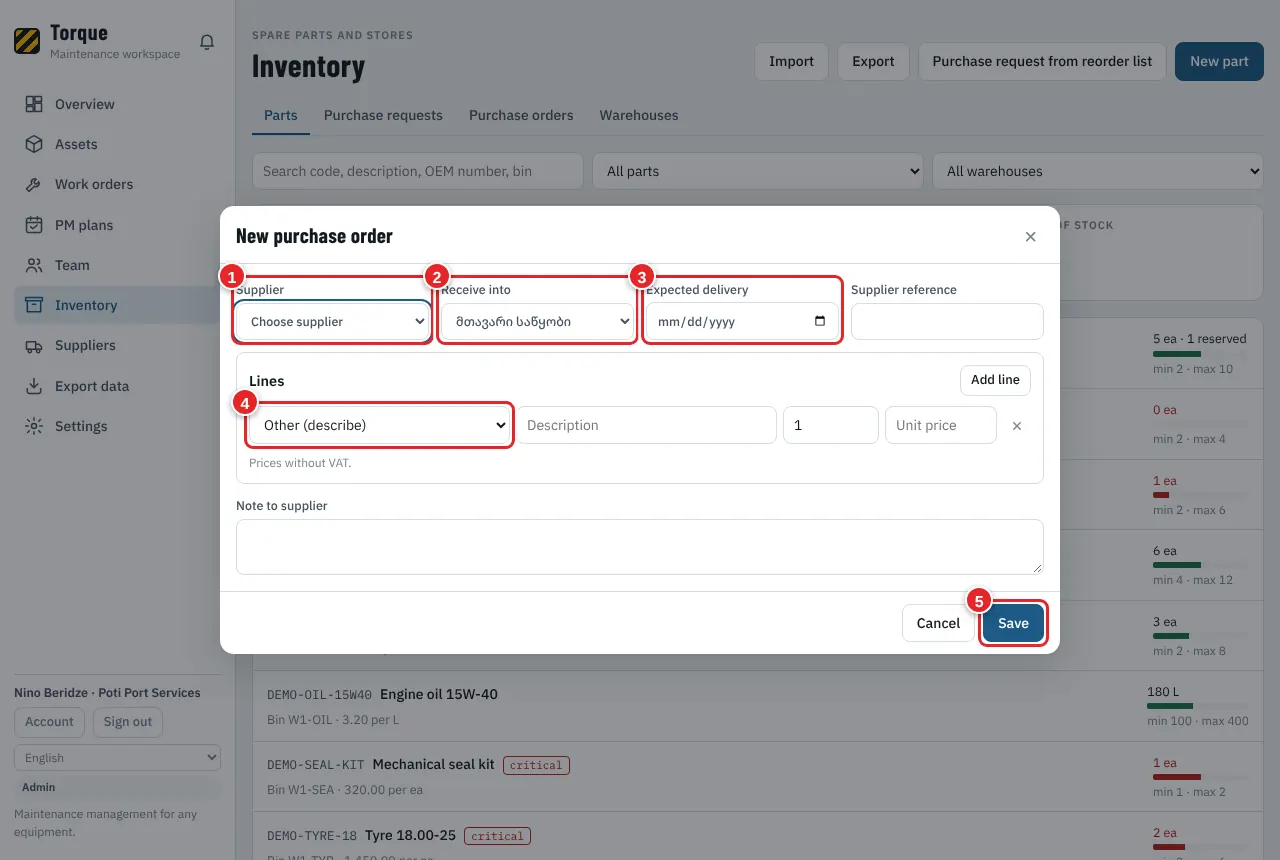
Picture 27 New purchase order
- Supplier (add suppliers in the Suppliers menu).
- Receive into: which warehouse.
- Expected delivery date.
- Lines: part, quantity, unit price (without VAT).
- Press "Save". When the goods arrive, open the order and press "Receive": stock goes up by itself.
13. Reports in Excel
Who can do this: Planner, Admin
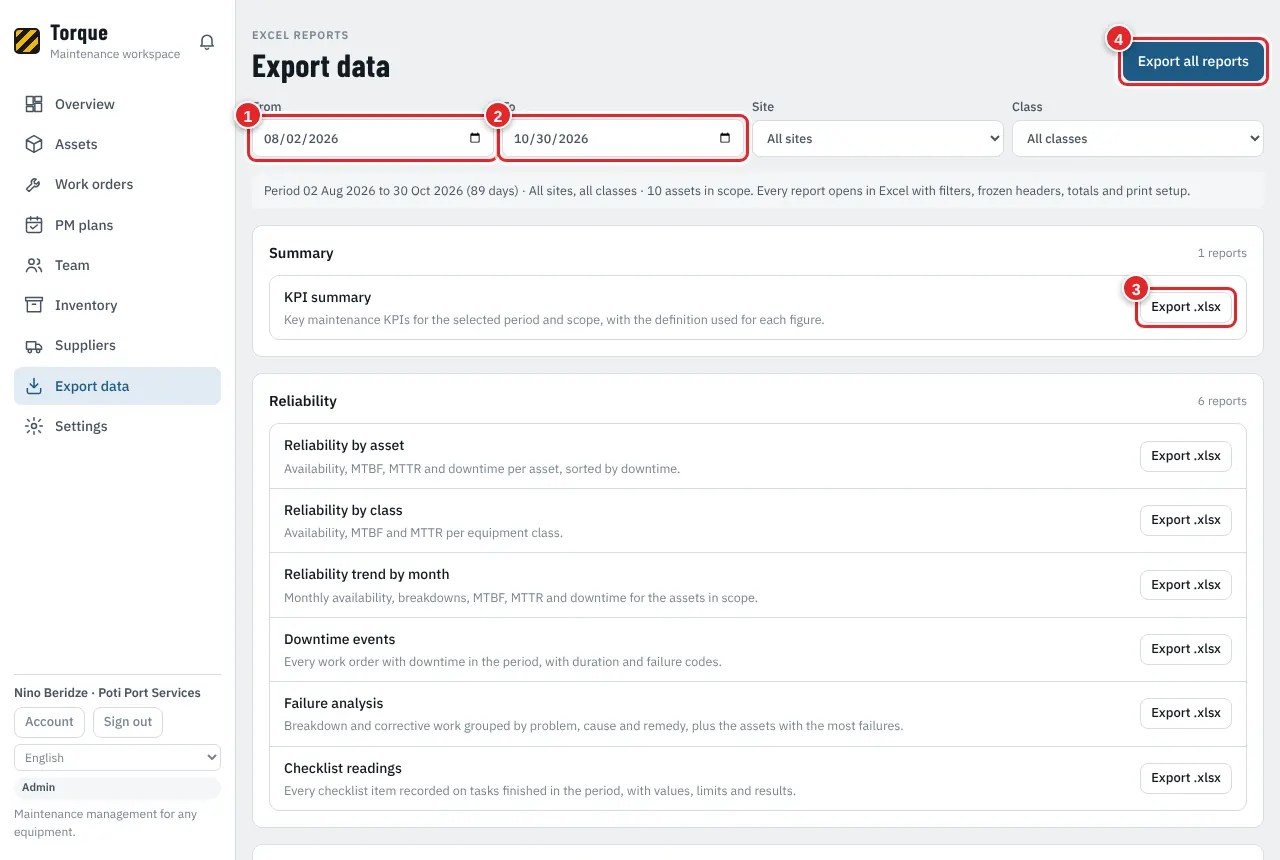
Picture 28 Export data
- From: the first day of the period.
- To: the last day. You can also filter by site and class.
- Press "Export .xlsx" on one report.
- Or press "Export all reports" to get all of them at once.
14. Notifications
Who can do this: Everyone
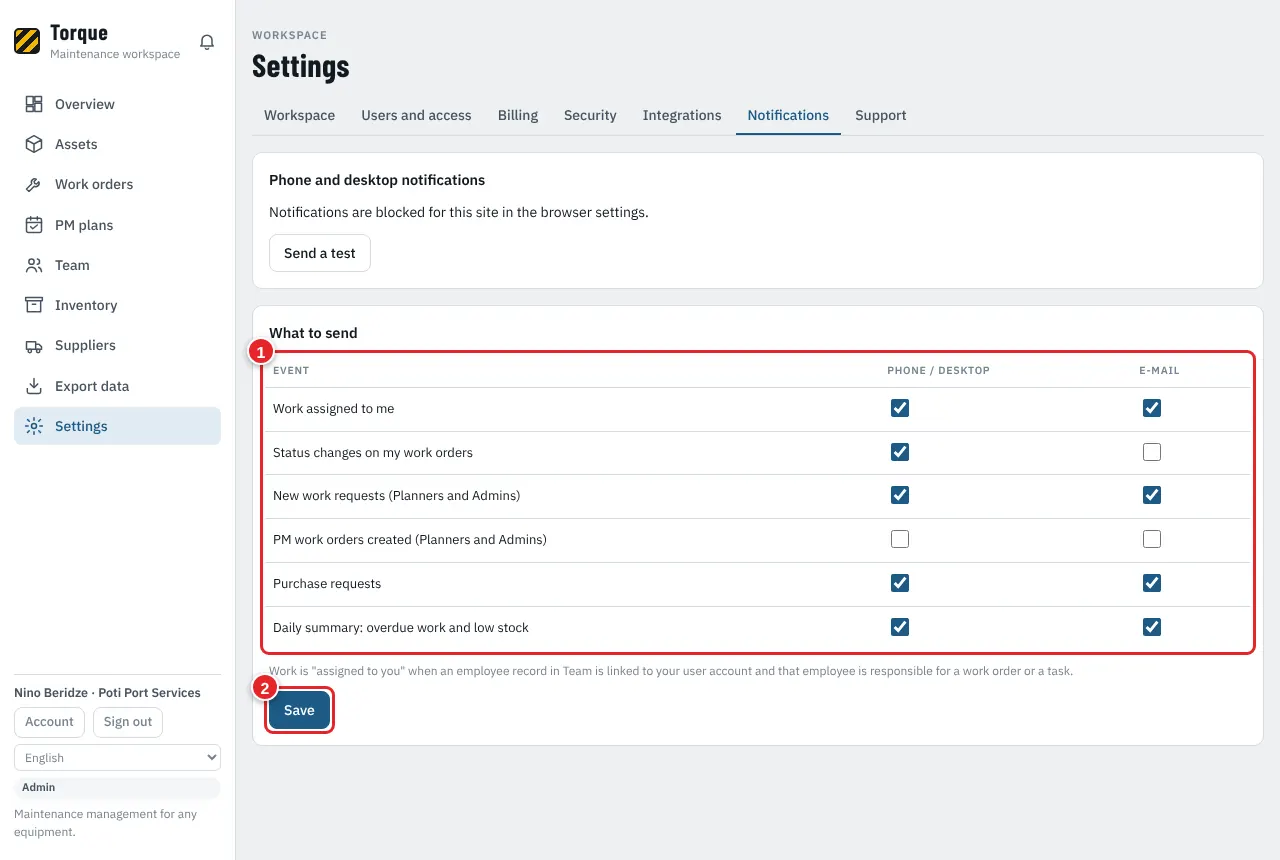
Picture 29 Settings > Notifications
- Tick what you want to receive on the phone or computer, and by e-mail: work assigned to you, status changes, new requests, PM work orders, purchase requests, daily summary.
- Press "Save". Press "Send a test" to check that it works.
15. Bring your existing data from Excel
Who can do this: Admin, Planner
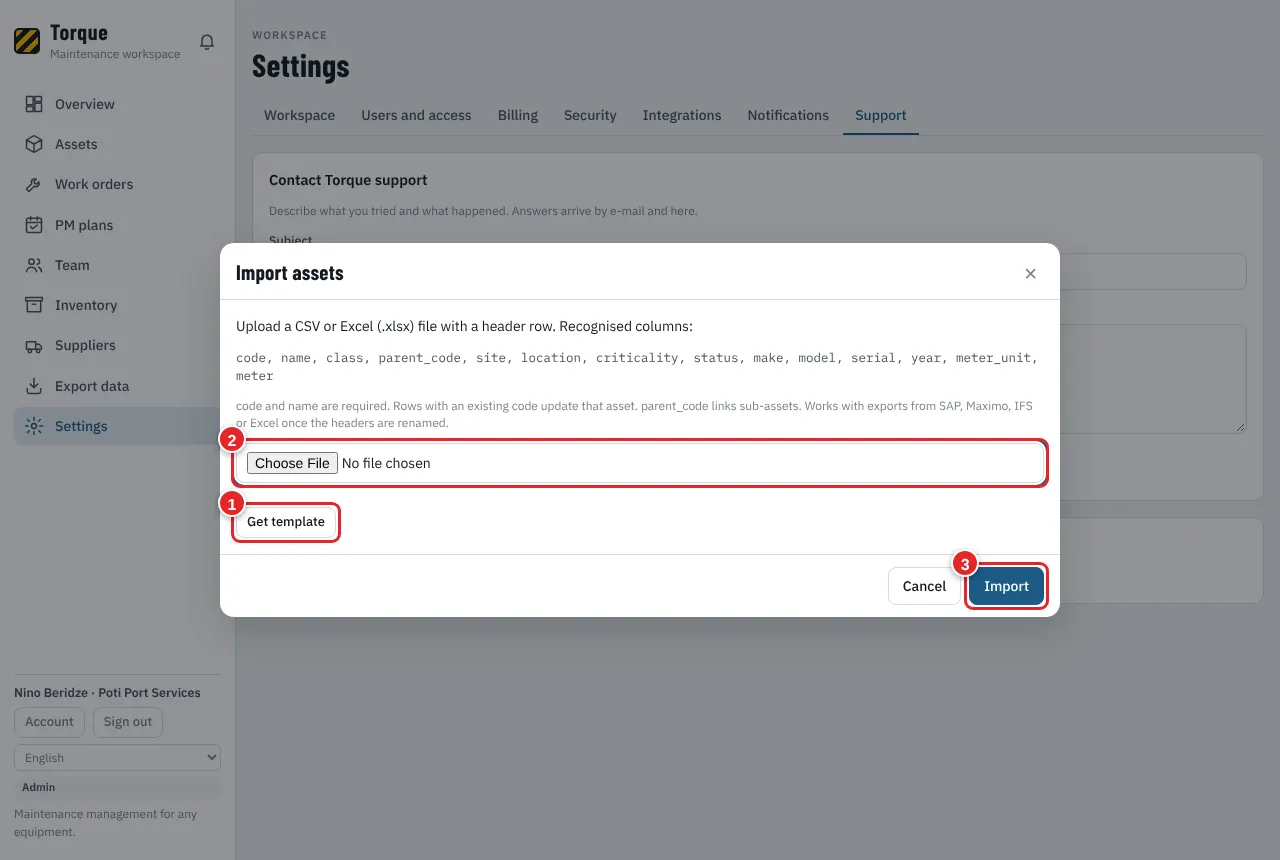
Picture 30 Import (example: assets)
- Press "Get template" to download an empty file with the right columns. Or take one from the Downloads page.
- Fill it in Excel, save it, and choose the file here.
- Press "Import". Torque shows how many rows were added or updated.
16. Plan and payment
Who can do this: Admin
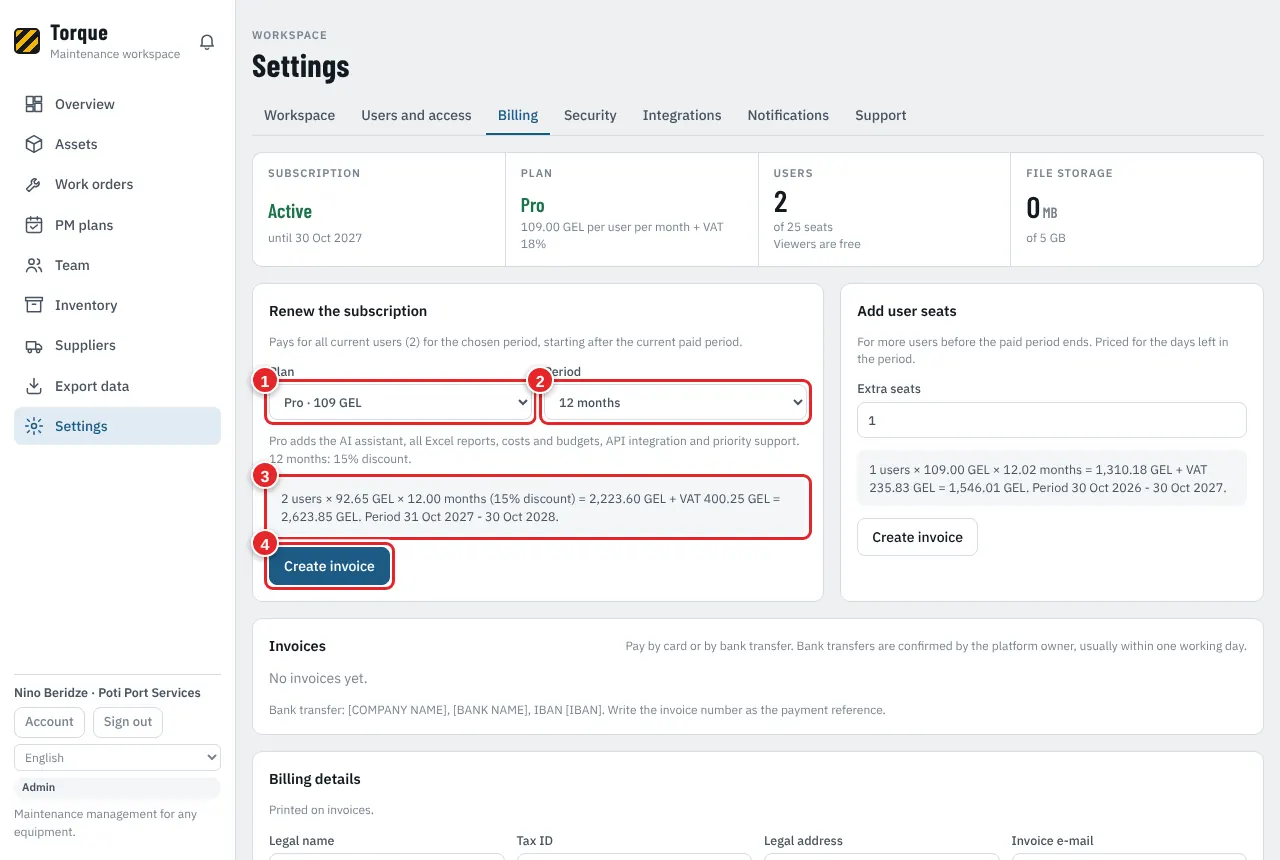
Picture 31 Settings > Billing
- Plan: Lite or Pro.
- Period: 1 to 12 months. 12 months are cheaper (the discount is shown).
- Torque shows the exact amount: users × price × months, plus VAT.
- Press "Create invoice". Pay by card or by bank transfer with the invoice number as reference.
17. Help and support
Who can do this: Everyone
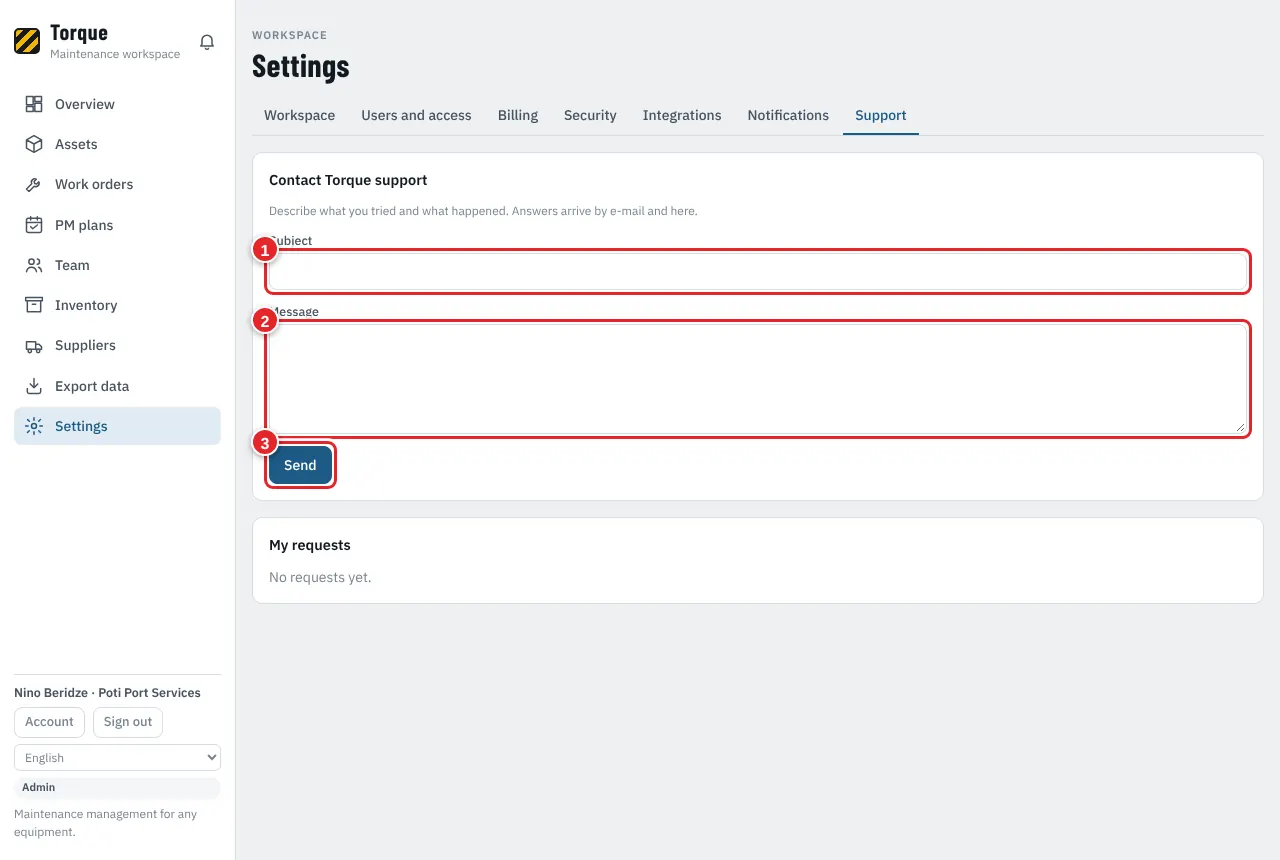
Picture 32 Settings > Support
- Subject: a short title of the problem.
- Message: what you did, what happened, which work order or asset.
- Press "Send". The answer comes by e-mail and in the same place.
18. Quick answers
I forgot my password.
On the sign-in page press "Forgot your password?", type your e-mail and follow the link in the e-mail.
How do I change the language?
In the menu at the bottom left (on a phone: at the top). Each person chooses their own.
A technician cannot press "Complete".
The Admin decides who may set each status: Settings > Users and access > Work order status permissions.
I cannot add a new user.
All paid seats are used. The Admin adds seats in Settings > Billing. Viewers need no seat.
Can I undo a mistake?
Edit the record and save it again. Every change is written in the audit log, so you always see who changed what.
How do we leave and keep our data?
Admin: Settings > Workspace > "Download everything". You get all records, photos and files.
Still stuck? Write to us in Settings > Support or at support@cmms.ge. We answer within one working day.